


New article
Recently updated
Troubleshooting email saves to SharePoint

Who is this article for?
Users who are having trouble saving to SharePoint.
no special access is required.
If saving an email to SharePoint fails, this checklist helps you find the cause quickly.
Checking your account credentials
Signing in with the wrong account is the most common cause of unexpected access errors.
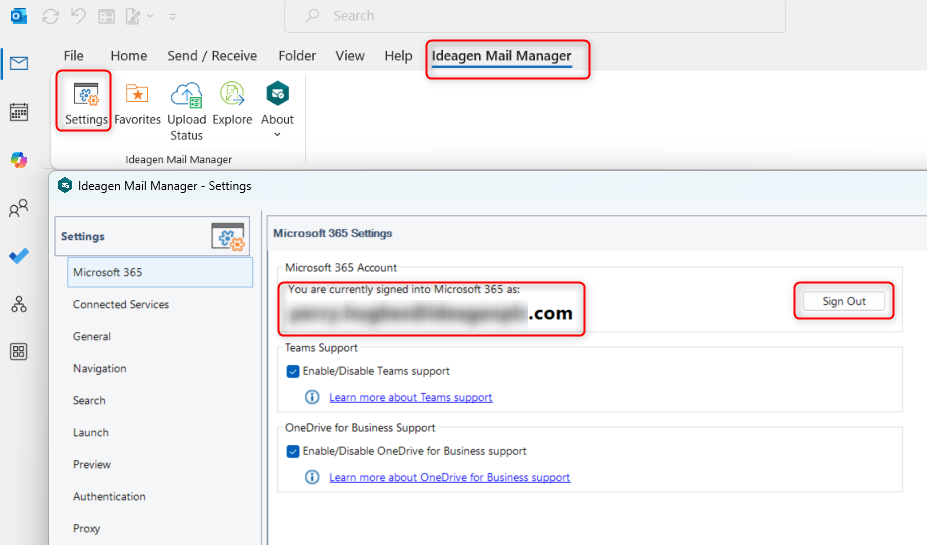
To confirm your account:
- Go to Settings.
- Select Microsoft 365 in the Desktop app.
- Verify you are signed in with your correct Microsoft 365 work account.
Verifying library permissions
You can only save to a SharePoint location where you have contribute or edit rights.
To test your permissions:
- Open the library in a browser.
- Try uploading a file.
If you can upload successfully, you have the right permissions. If you cannot, ask your SharePoint administrator to grant access.
Note: See Checking SharePoint permissions – Ideagen Mail Manager • Enterprise for detailed guidance.
Resolving ErrorAccessDenied errors
If you see ErrorAccessDenied or Access is denied. Check credentials, this is usually a permissions or authentication issue on the destination site.
See Troubleshooting ErrorAccessDenied: Access is denied. Check credentials for the complete resolution guide.
Fixing 403 Forbidden errors
A 403 error means SharePoint is refusing the request, commonly due to permissions or a conditional access policy.
To resolve this error:
- Confirm library permissions (see the Verifying library permissions section above).
- Work with IT to check whether a conditional access policy is blocking the app.
Note: See Understanding Microsoft conditional access policies and Mail Manager Enterprise for more information.
Understanding metadata capture issues
If you see Email metadata is not being captured when saving, the email columns or OnePlaceMail Email content type have not been deployed to that document library. This means the email's metadata (From, To, Sent, Subject) cannot be stored.
Ask your administrator to add the email columns to the library. Saving will still work, but the metadata columns need deploying to capture the detail.
Note: See Understanding SharePoint content types in Ideagen Mail Manager Enterprise for deployment instructions.
Troubleshooting new library saves
Newly created libraries sometimes need the email columns or content type deploying before saves behave as expected.
To resolve this issue:
- Confirm the library is a document library.
- Ask your administrator to deploy the email columns (see the Understanding metadata capture issues section above).
Important: Saving to SharePoint Lists is not supported unless a content type with the email columns has been created manually.
Fixing timeout and performance issues
If the save hangs or times out rather than showing an error, see Fixing 'Mail Manager is taking longer than expected' and slow saving for detailed troubleshooting steps.
Getting additional support
If you still need help after working through this checklist, open a support ticket from the Ideagen Mail Manager Enterprise help centre.
To submit an effective ticket:
- Include the exact error text
- Provide the SharePoint URL you are saving to
- Note whether other users experience the same problem