


New article
Recently updated
Resolving "Import Failed" error when importing email search configuration

Who is this article for?
Administrators who get an import failed while setting up email search schema.
SharePoint Administrator permissions are required.
When setting up the email search schema, you may encounter an import failed error due to a Microsoft issue.
Understanding the error
The import failure occurs when attempting to import the search configuration file during email search schema setup.
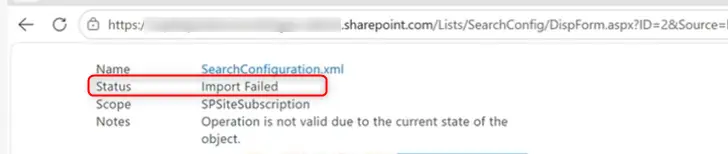
Note: This issue has been logged with Microsoft in November 2026 to be fixed.
The current workaround requires your SharePoint administrator to configure the search settings manually. This process takes approximately 15 minutes.
Setting up email search settings manually
Before you start: File at least one email to SharePoint with Mail Manager, then wait a few hours for search to pick it up. Some of the fields below only appear after that.
To configure the email search settings manually:
- Go to the SharePoint admin center.
- Select More features.
- Select Search.
- Select Open.
- Select Manage Search Schema.
- Click New Managed Property.
- Create each of the following nine properties with type Text and tick Searchable, Queryable, and Retrievable:
- EmTo
- EmFrom
- EmFromName
- EmSubject
- EmCategory
- EmCC
- EmCCSMTPAddress
- EmToAddress
- EmAttachCount
- For each property, under Mappings to crawled properties, click Add a Mapping.
- Select the matching crawled property with
ows_in front of the name (for example,EmTo→ows_EmTo, andEmCC→ows_EmCC). - Find the existing property
RefinableDate00and click to edit it. - In the Alias field, enter
EmDateSent. - Add a mapping to
ows_EmDateSent. - Click Save.
- Open the Email Search Schema wizard in the Mail Manager Admin Client.
- Verify that Step 4 shows everything as Mapped.