

New article
Recently updated
Deploying the latest email tracking package manually using Azure Portal App Deployment Center

Who is this article for?
Administrators that want to manually update their email tracking package.
Administrator permissions are required.
This article explains how to manually deploy the latest email tracking package using the Azure Portal App Deployment Center.
Accessing the Deployment Center
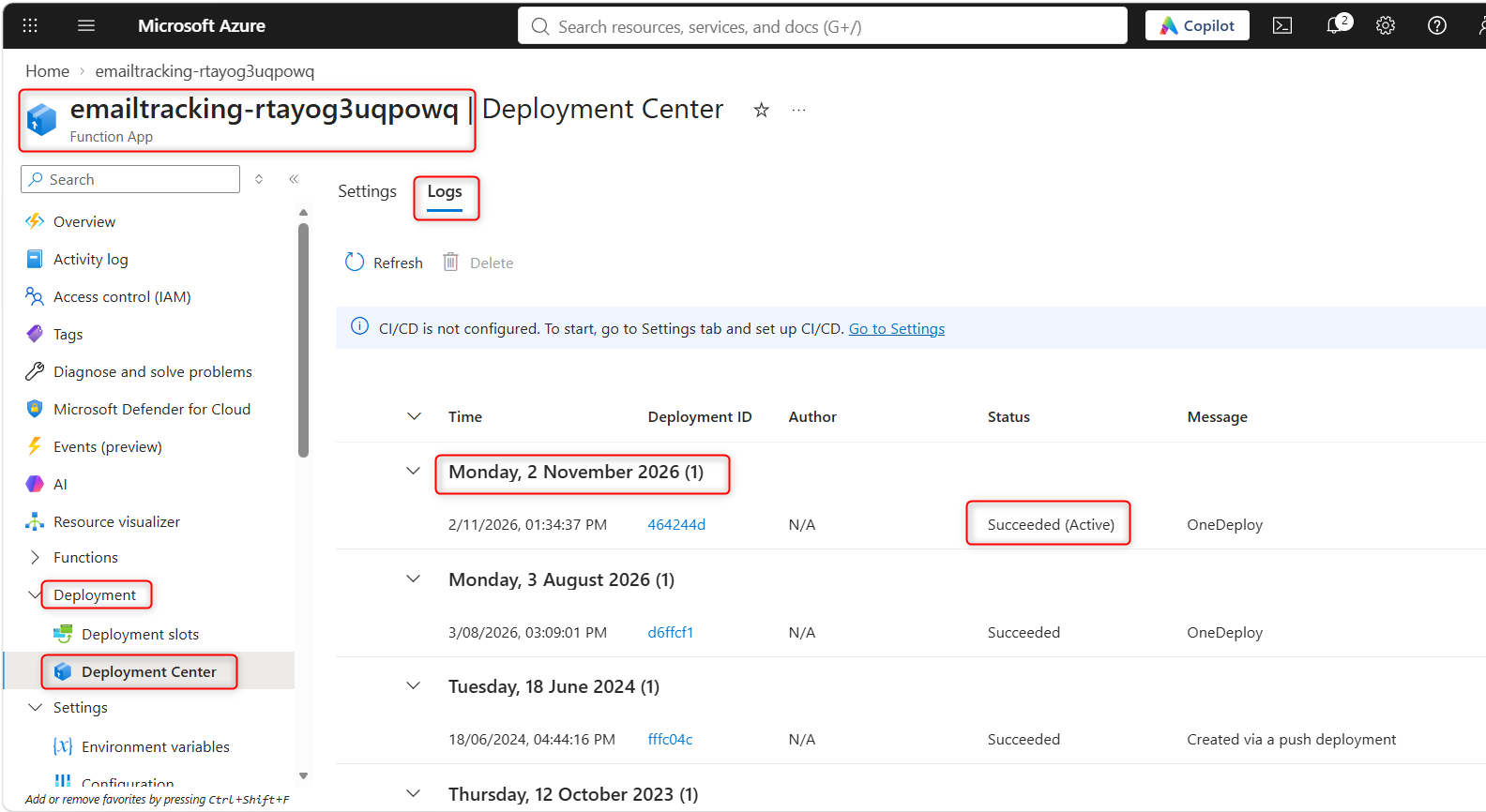
To access the Deployment Center:
- In your Azure Portal, go to your function app.
- Expand Deployment.
- Click on Deployment Center.
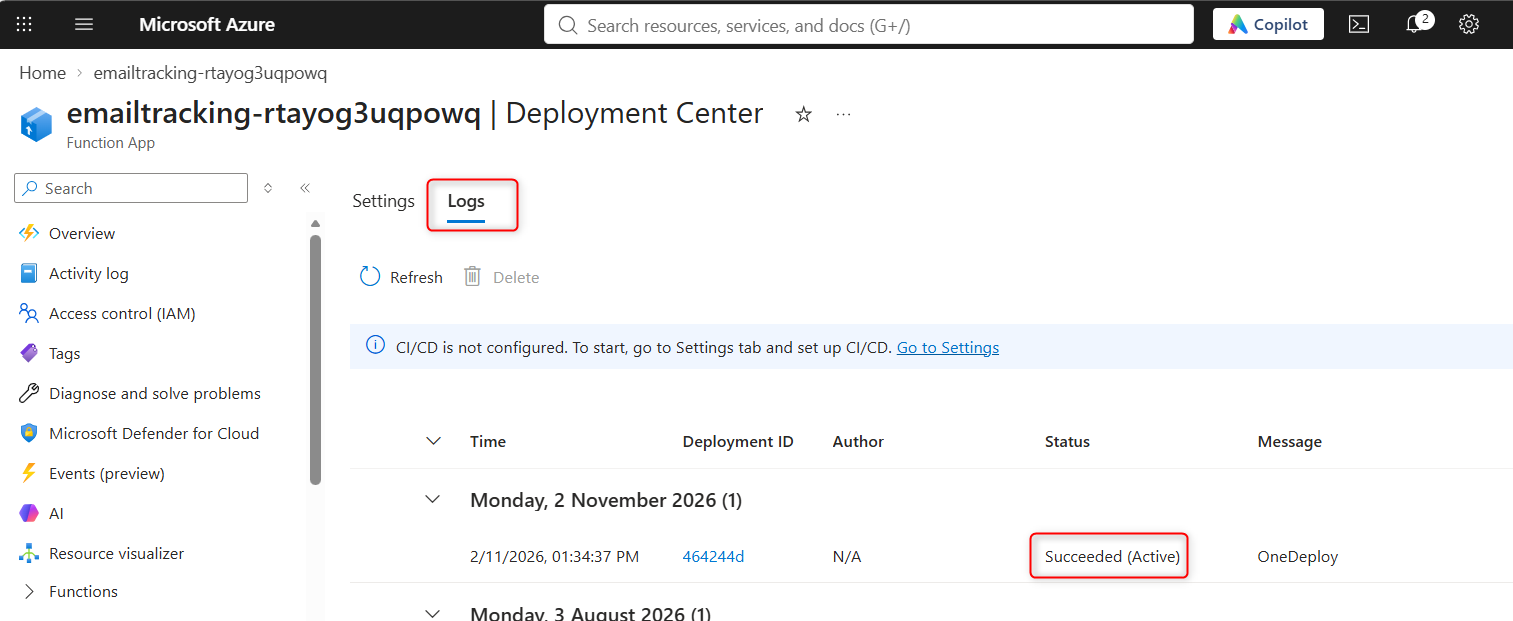
- On the Logs page, you will see the state of your last deployment.
Disconnecting Azure Pipelines
To disconnect Azure Pipelines if configured:
- Click into the Settings page.
- If your app has Azure Pipelines as the build provider, click Disconnect.
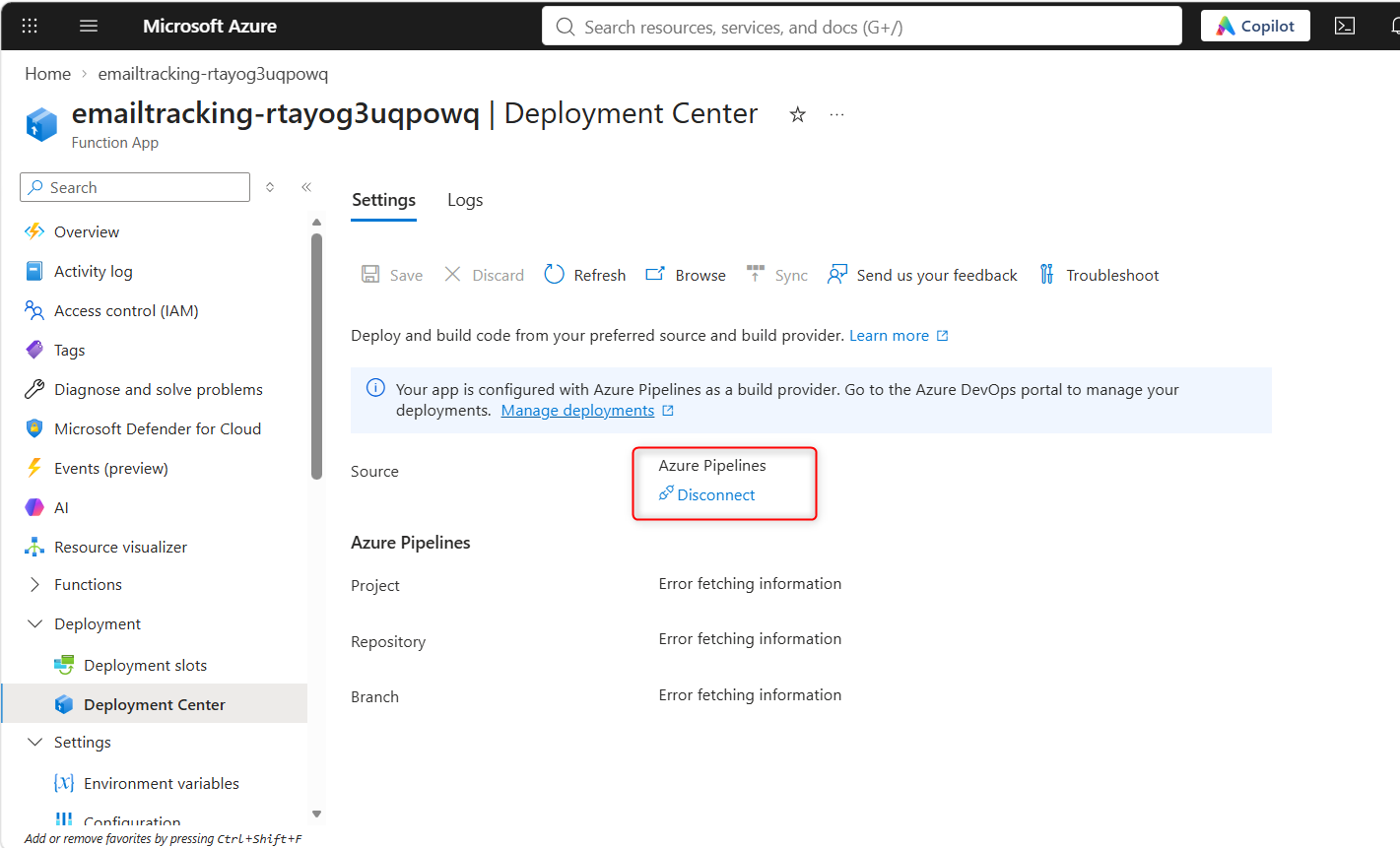
- Click Save.
- Once the disconnection process has finished, click Refresh.
Configuring manual deployment
To configure manual deployment:
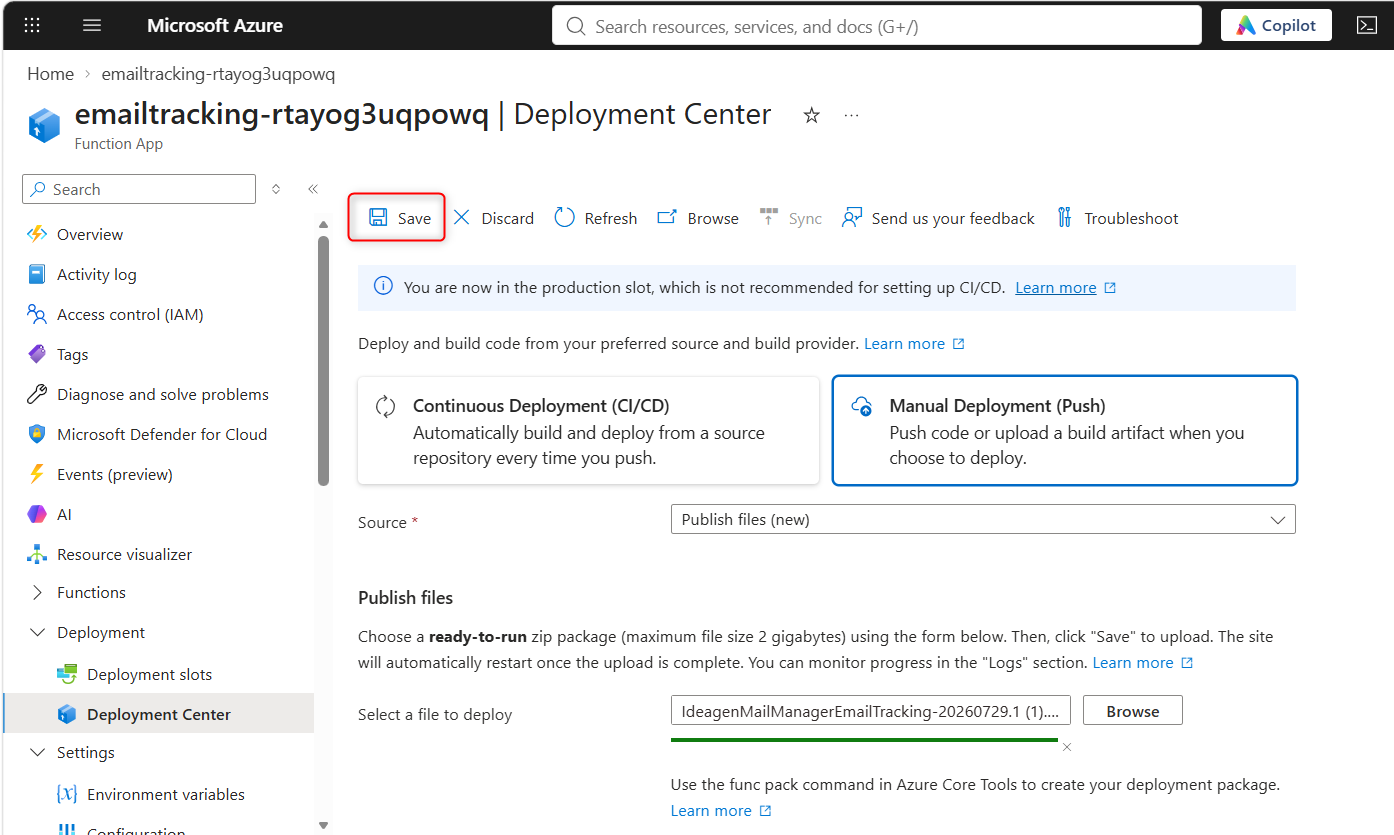
- Choose Manual Deployment.
- Set Source to Publish Files (New).
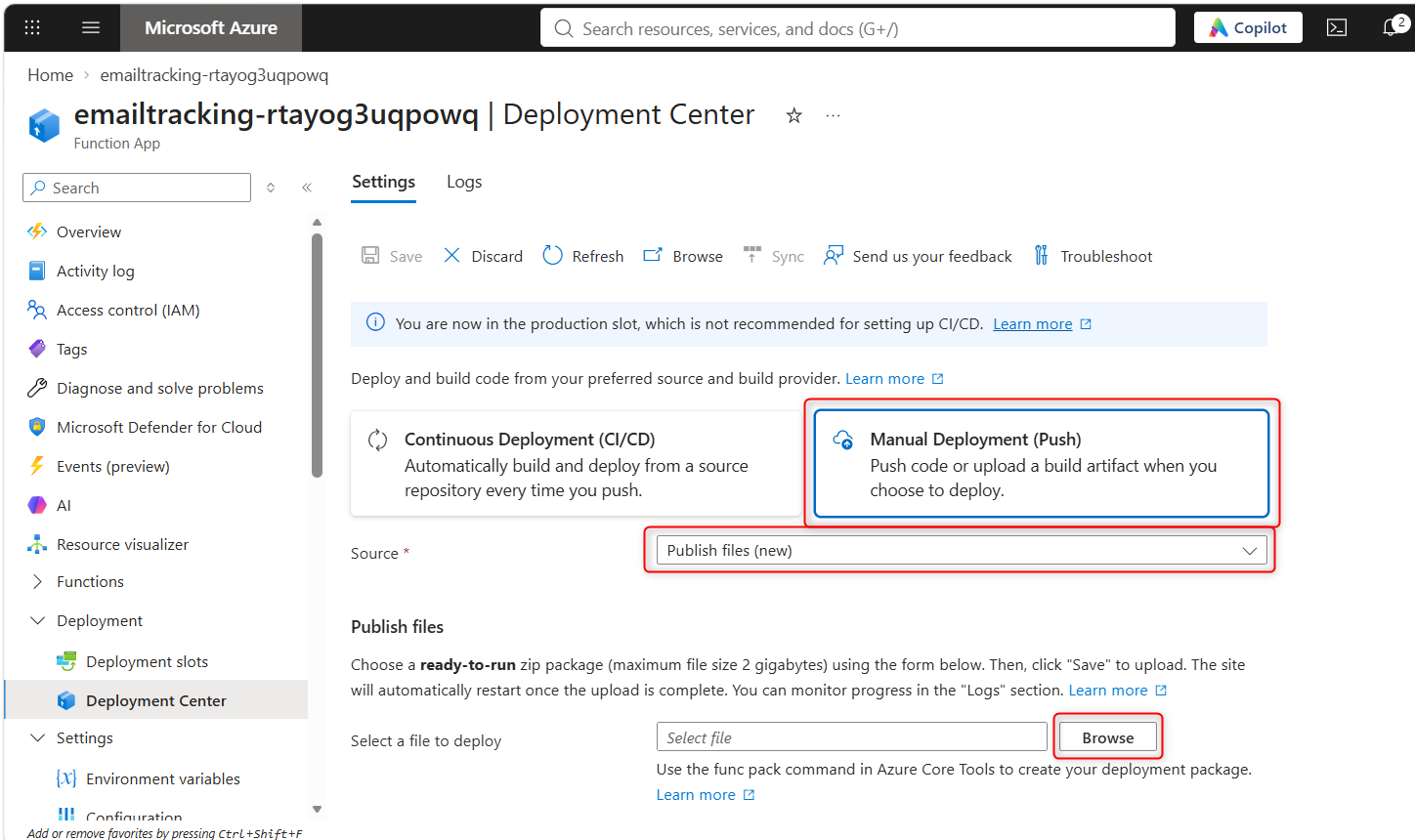
- Click Browse to point to your downloaded email tracking zip package (currently
IdeagenMailManagerEmailTracking-20260729.1.zip). in Oct 2026
- Click Save to deploy the package.
Verifying the deployment
To verify the deployment:
- Wait a few minutes.
- Click on the Logs tab to see if the deployment has succeeded.
You can then check your code version to see if it is the latest version by following the guidance in the related article.
A quick video demonstration of this process is also available: email tracking - manual code upload.mp4.