New article
Recently updated
Using Suggested Locations for predictive email filing

Who is this article for?
Users who want to enhance email filing using the Suggested Locations feature.
No elevated permissions are required.
Suggested Locations is a predictive filing feature in Ideagen Mail Manager that automatically recommends relevant SharePoint locations to file your email to, based on the email's attributes and existing related content in SharePoint.
This feature works out of the box with no configuration required. This guide covers how the feature works and the available Admin Client configuration options to further customise and enhance its accuracy.
Using Suggested Locations to file emails
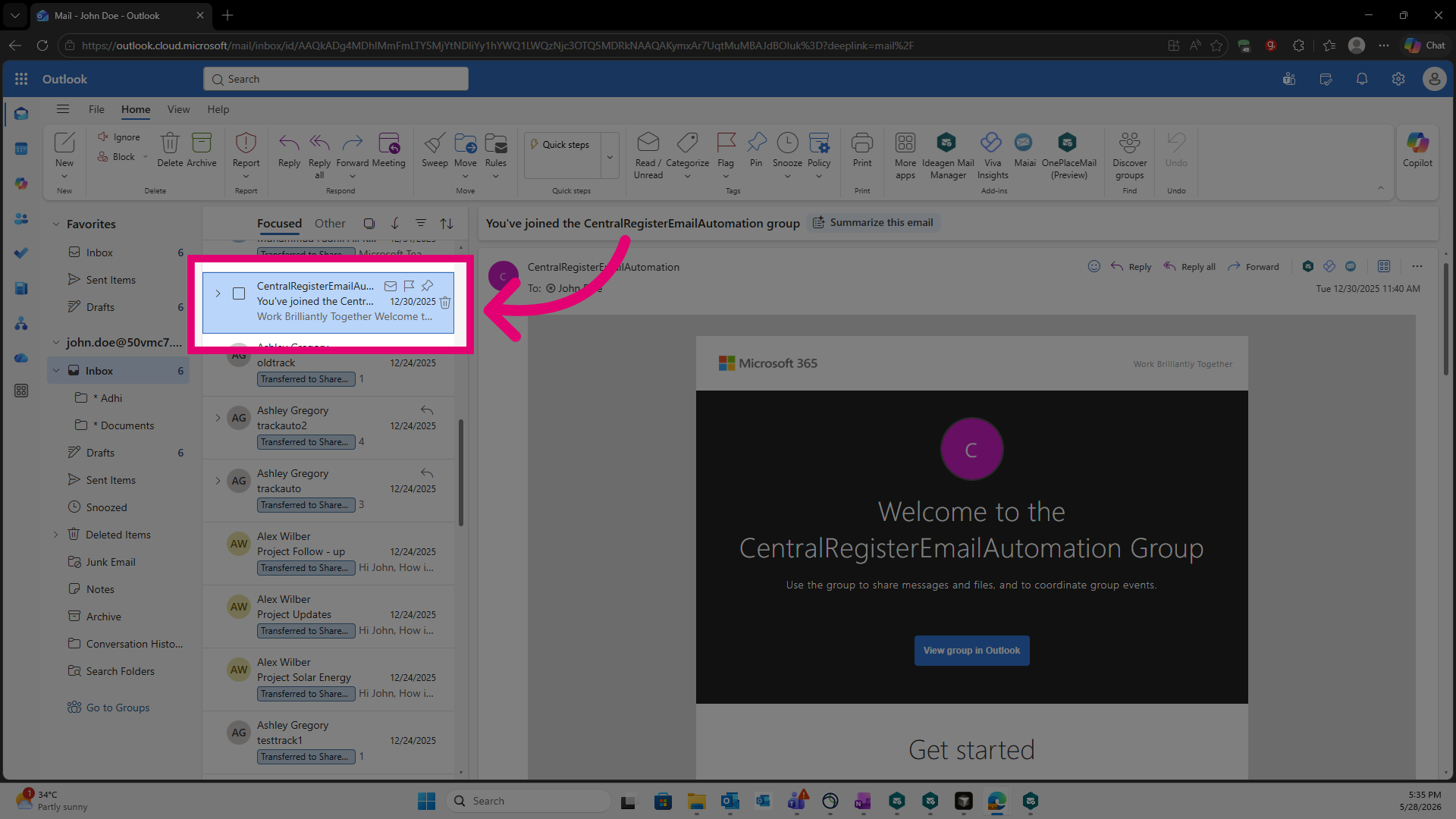
Select an email to save.
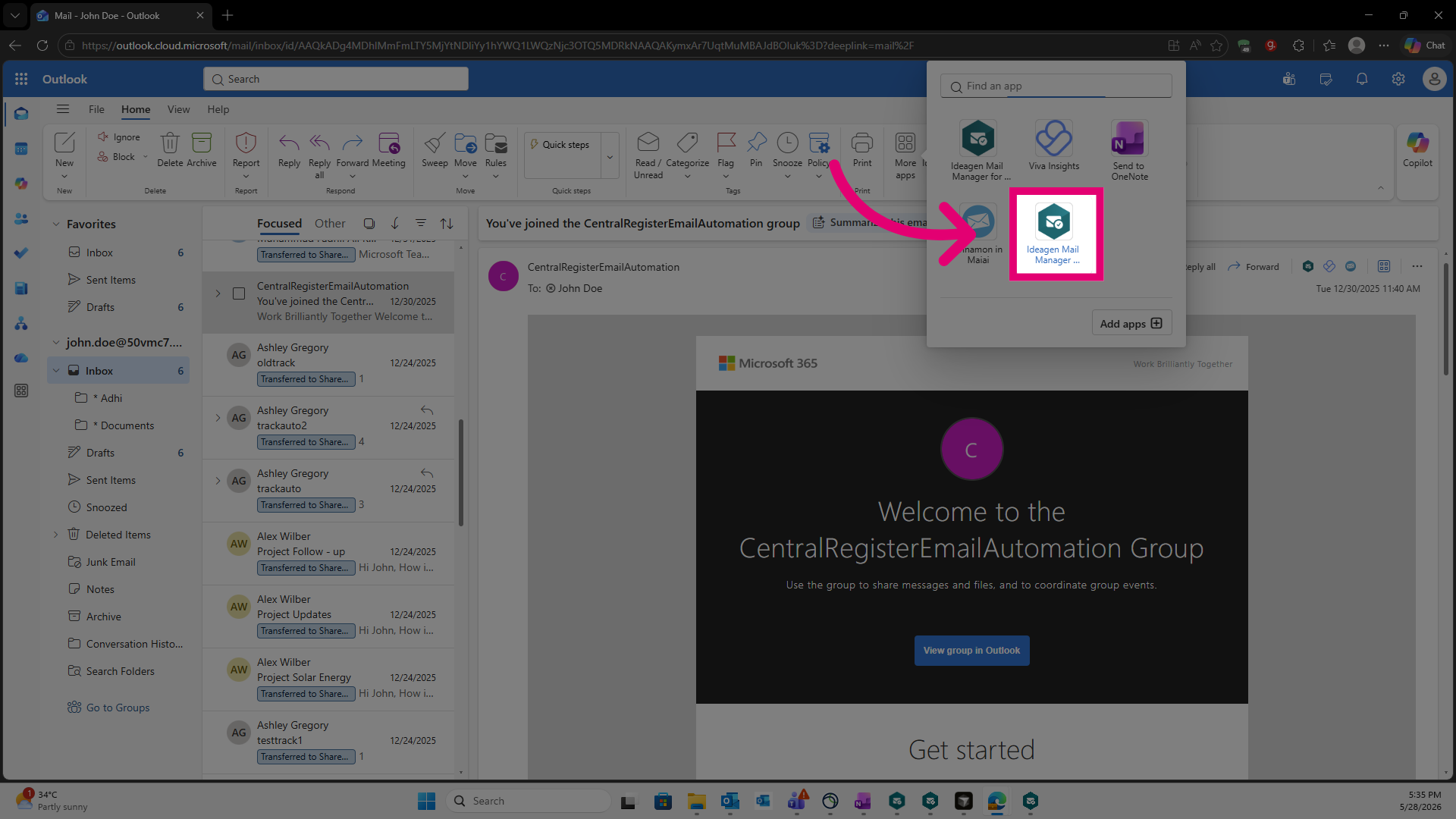
Open the Ideagen Mail Manager app.
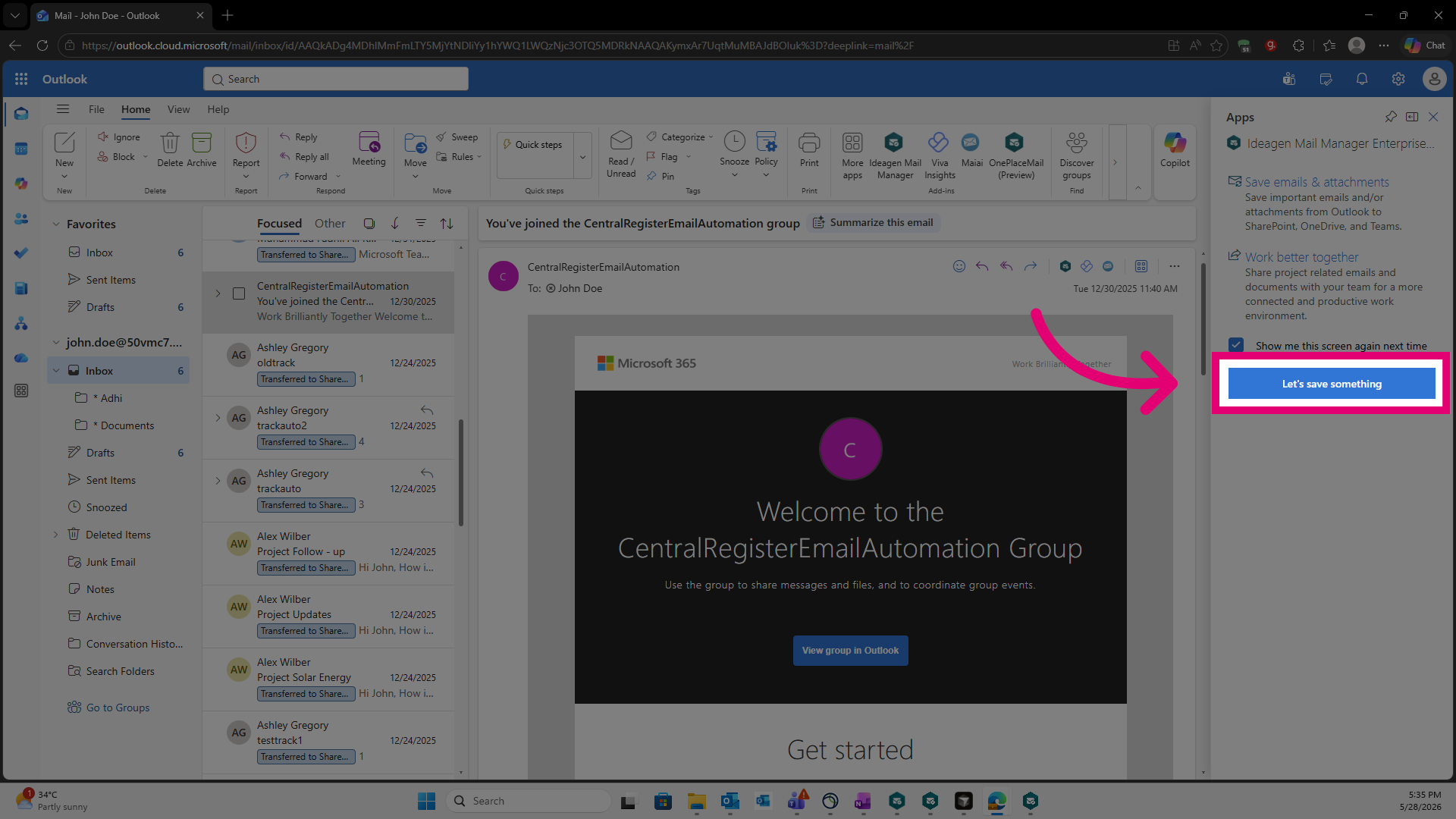
Click Let's save something to begin the saving process.
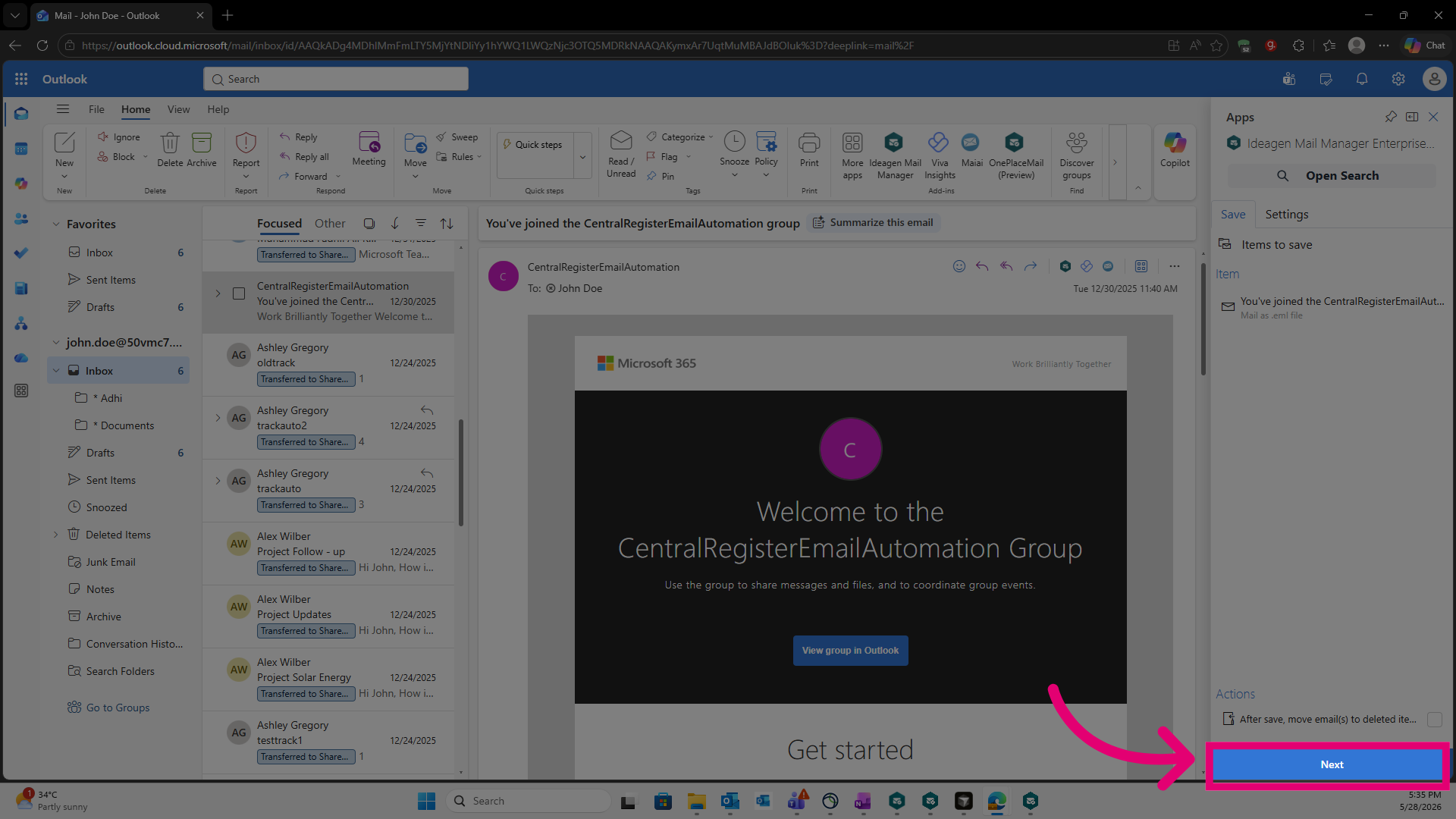
Click Next to continue.
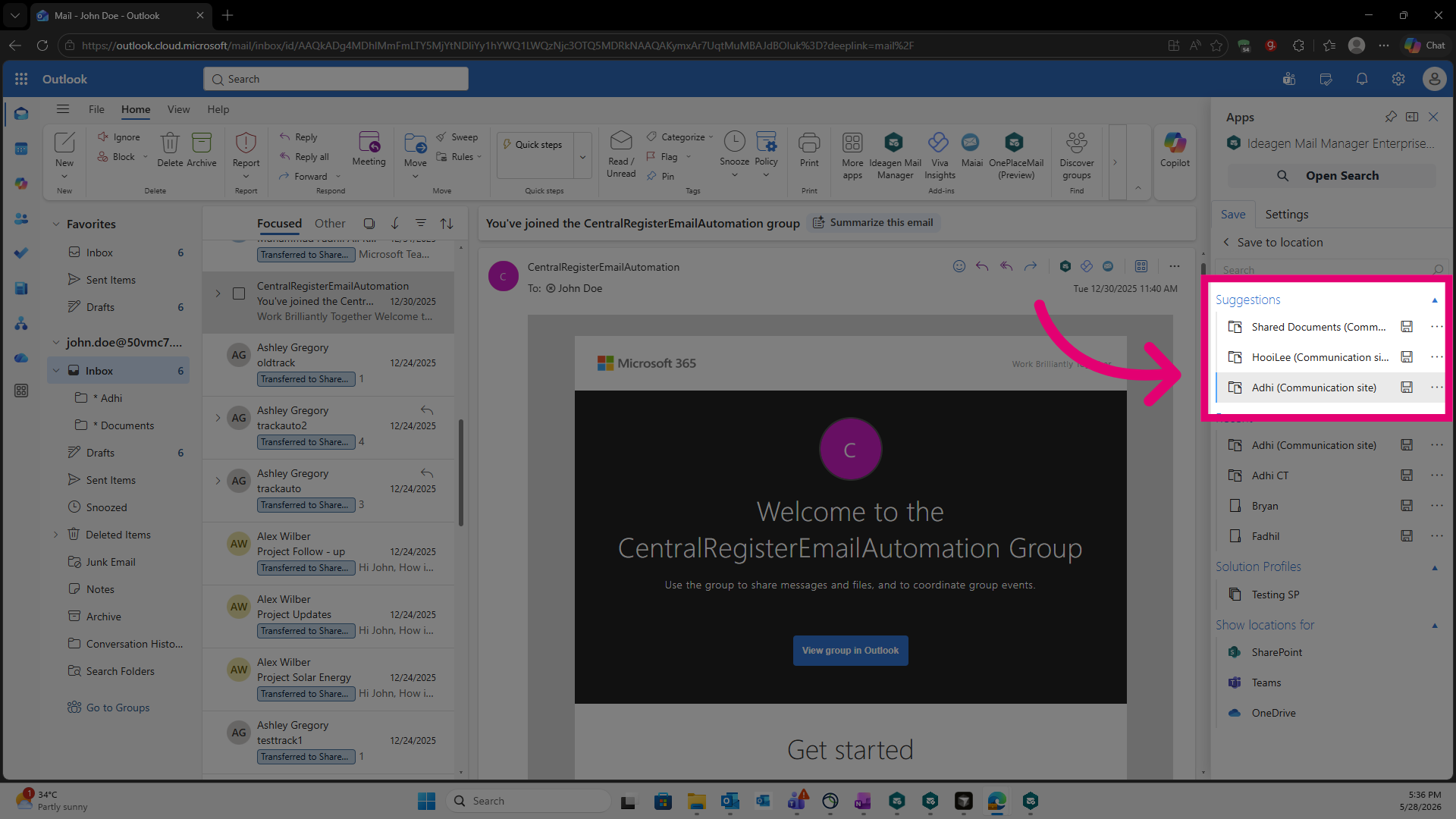
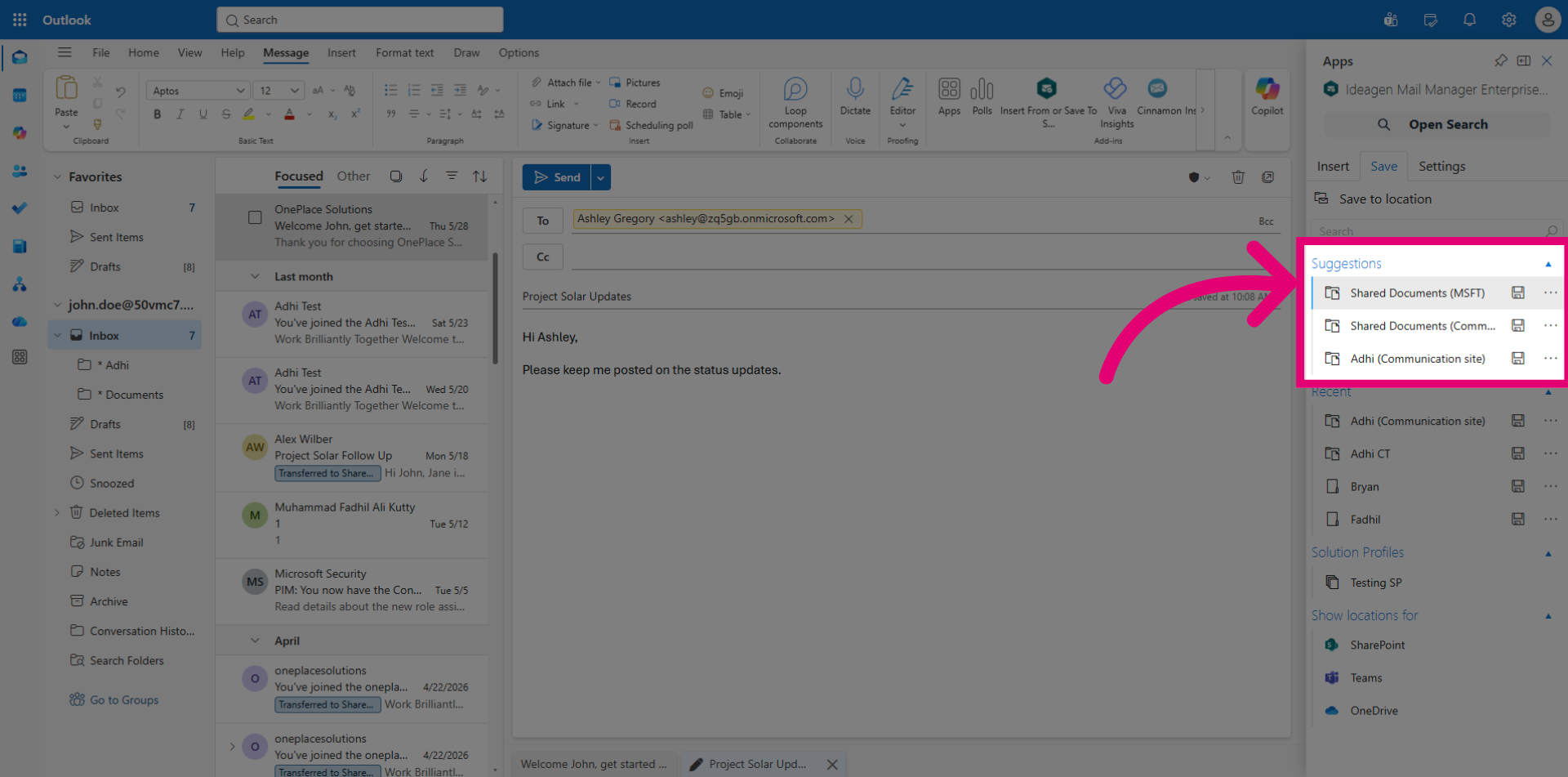
By default, a Suggestions node displaying a list of recommended filing locations will appear on the Save to Location page. You can select any of these locations to file your email directly.
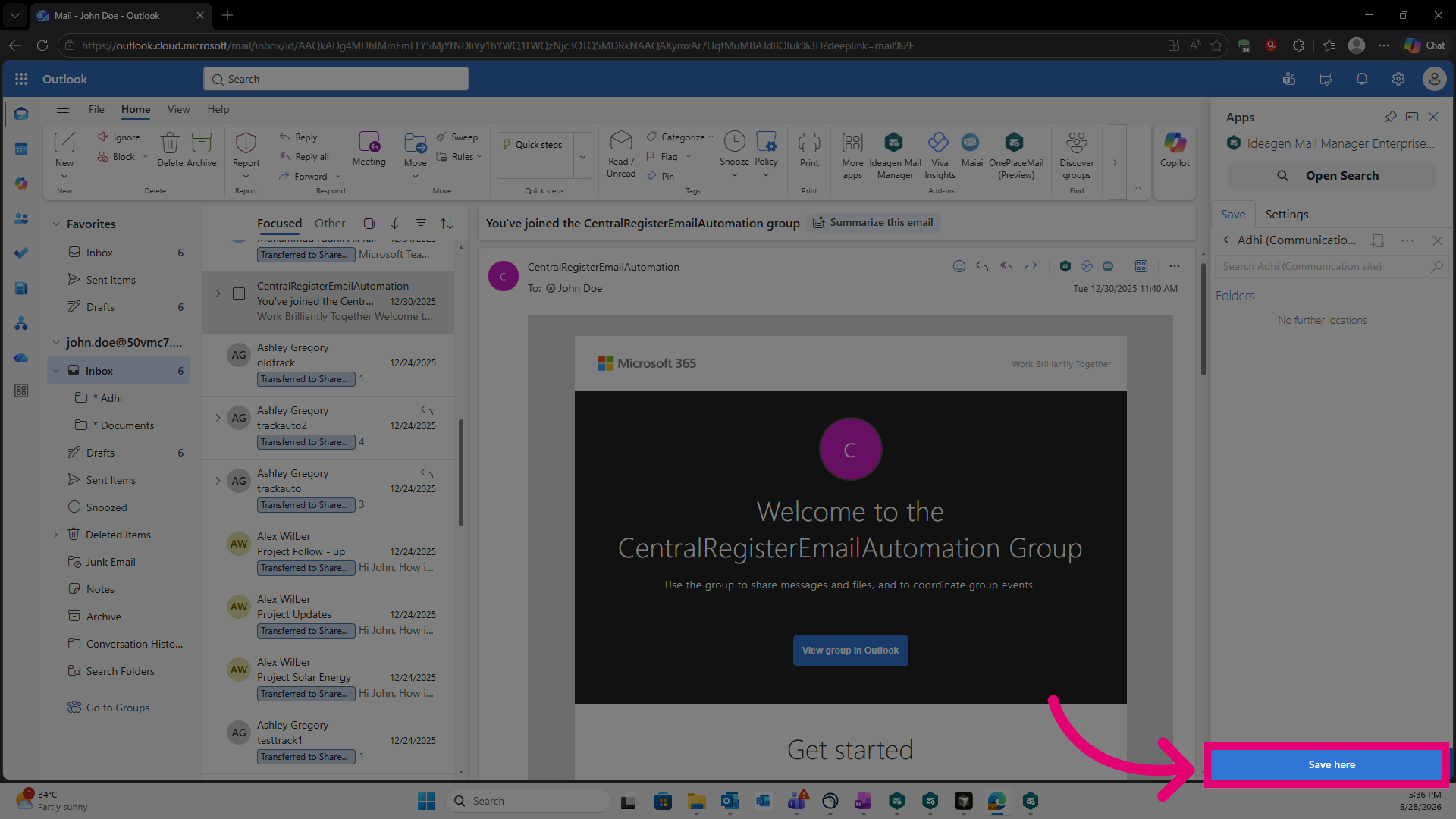
Click Save here to confirm the location where the email will be saved.
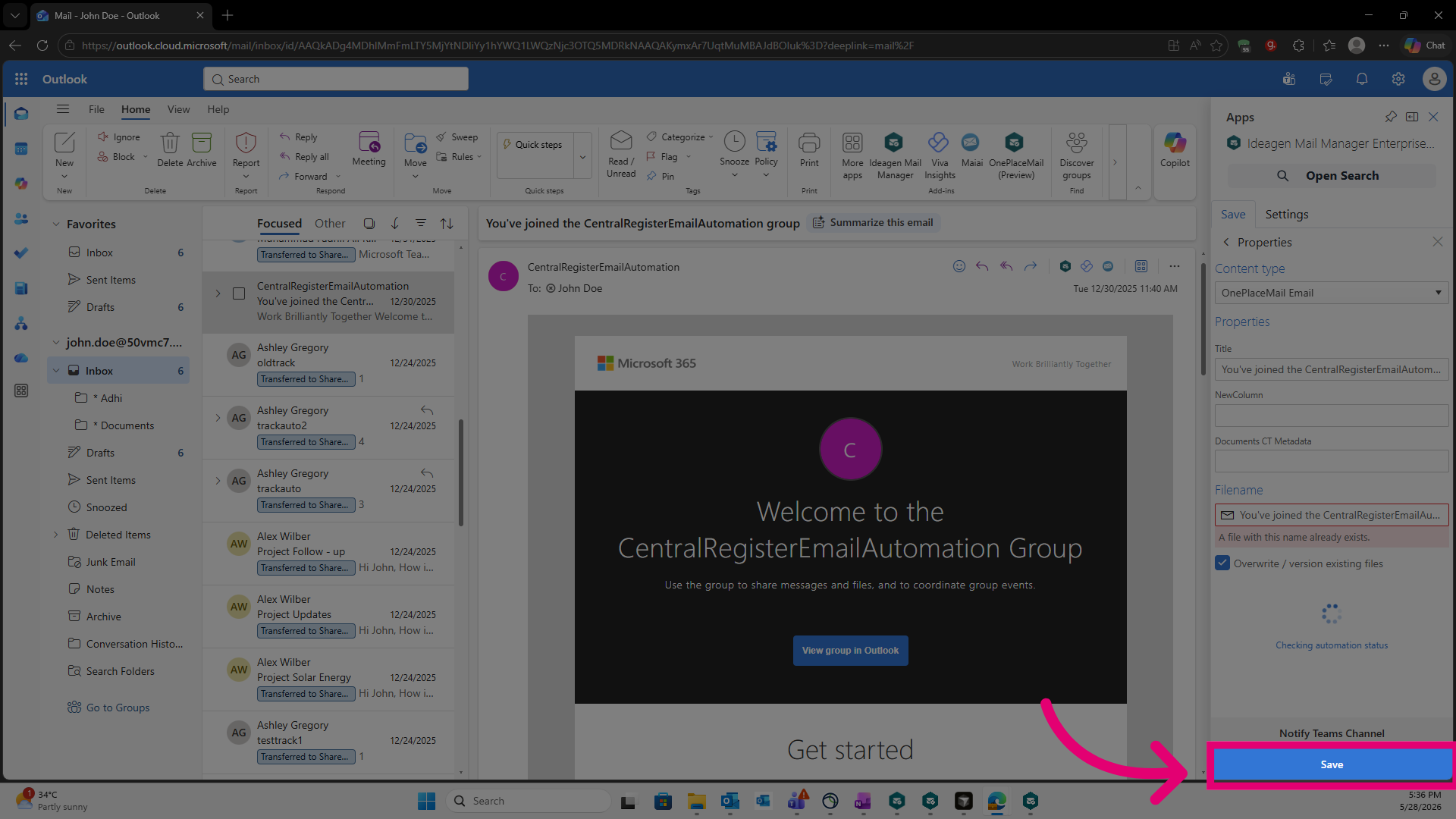
Click Save to complete saving the email to the selected suggested location.
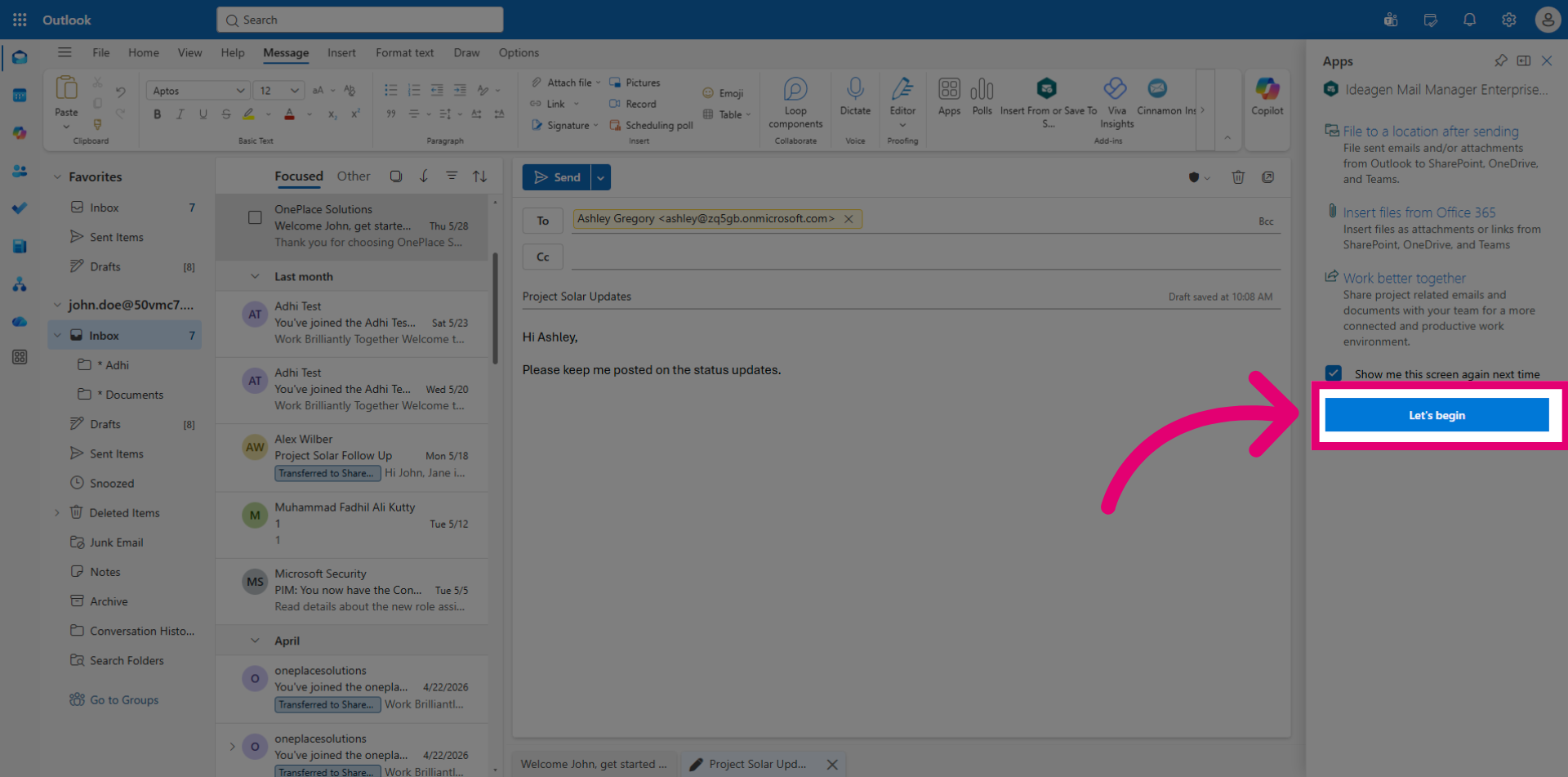
Suggested Locations is also available in Compose mode, allowing you to select a filing location before sending your email. To use it, draft a new email and open the Ideagen Mail Manager App. Click Let's begin.
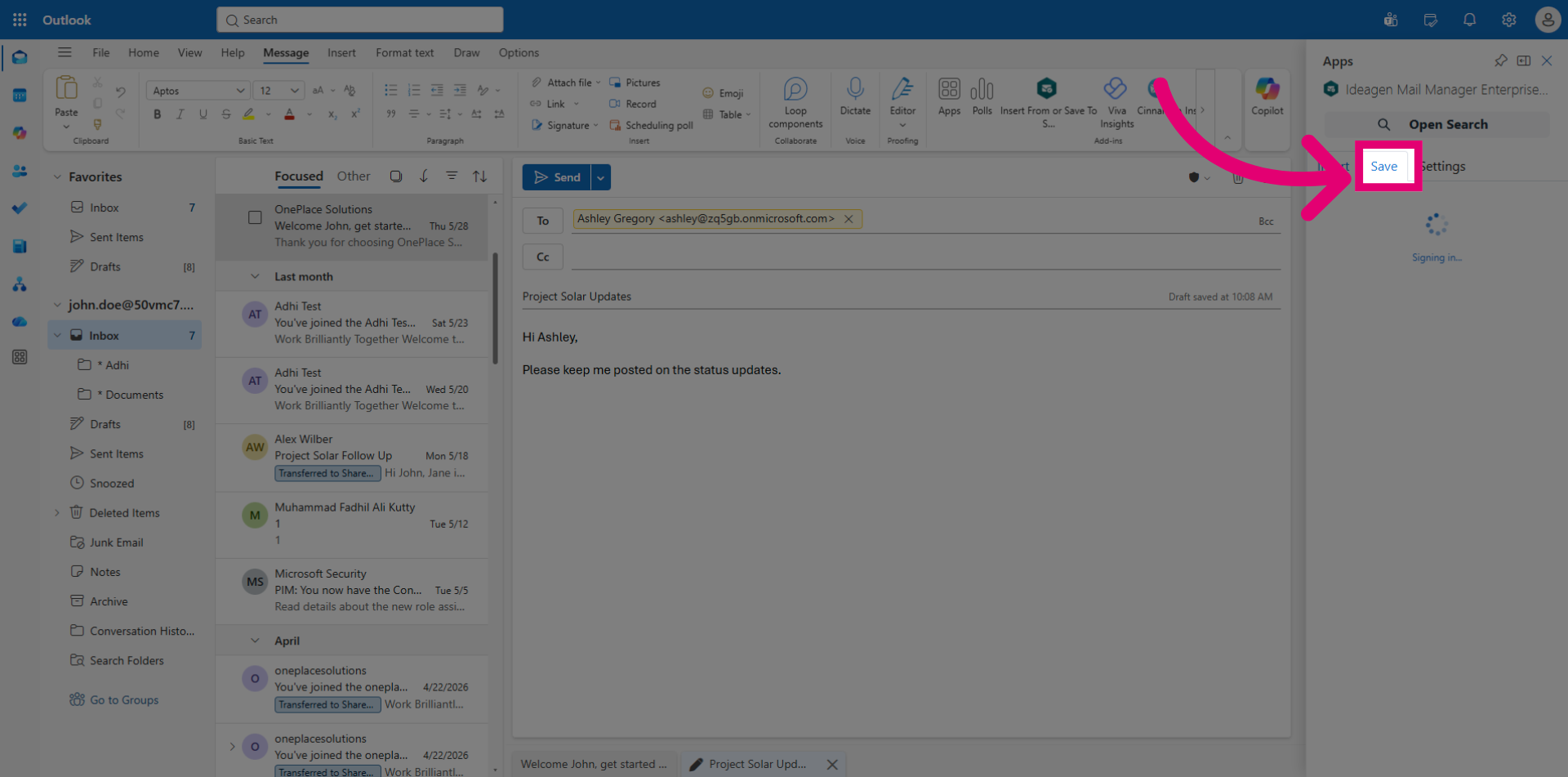
Navigate to the Save tab to set a filing location.
A Suggestions node will appear, displaying recommended filing locations for you to choose from.
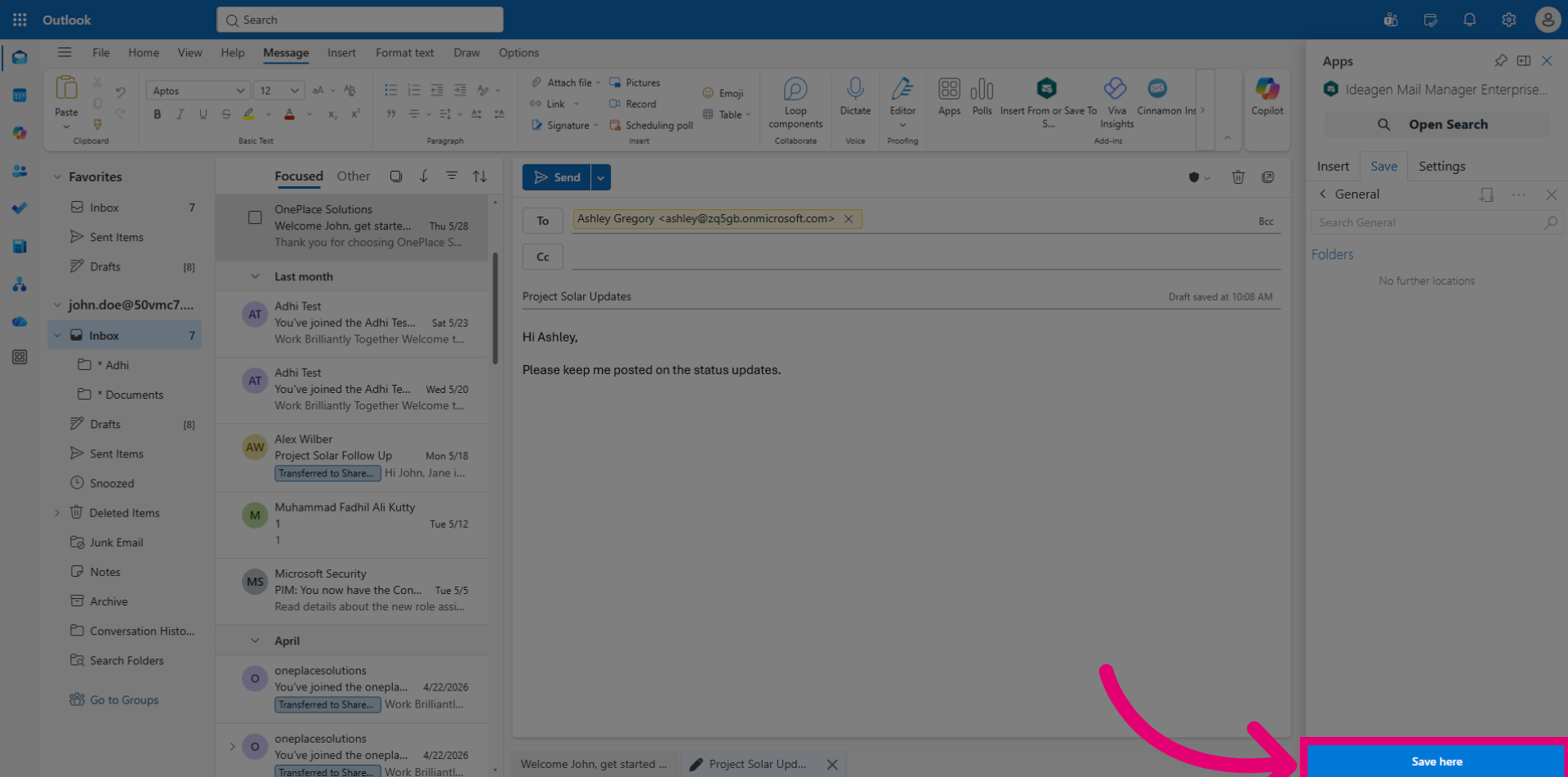
Click Save Here to confirm your selected filing location.
Click Set. Your email will be filed to the chosen location when you send it.
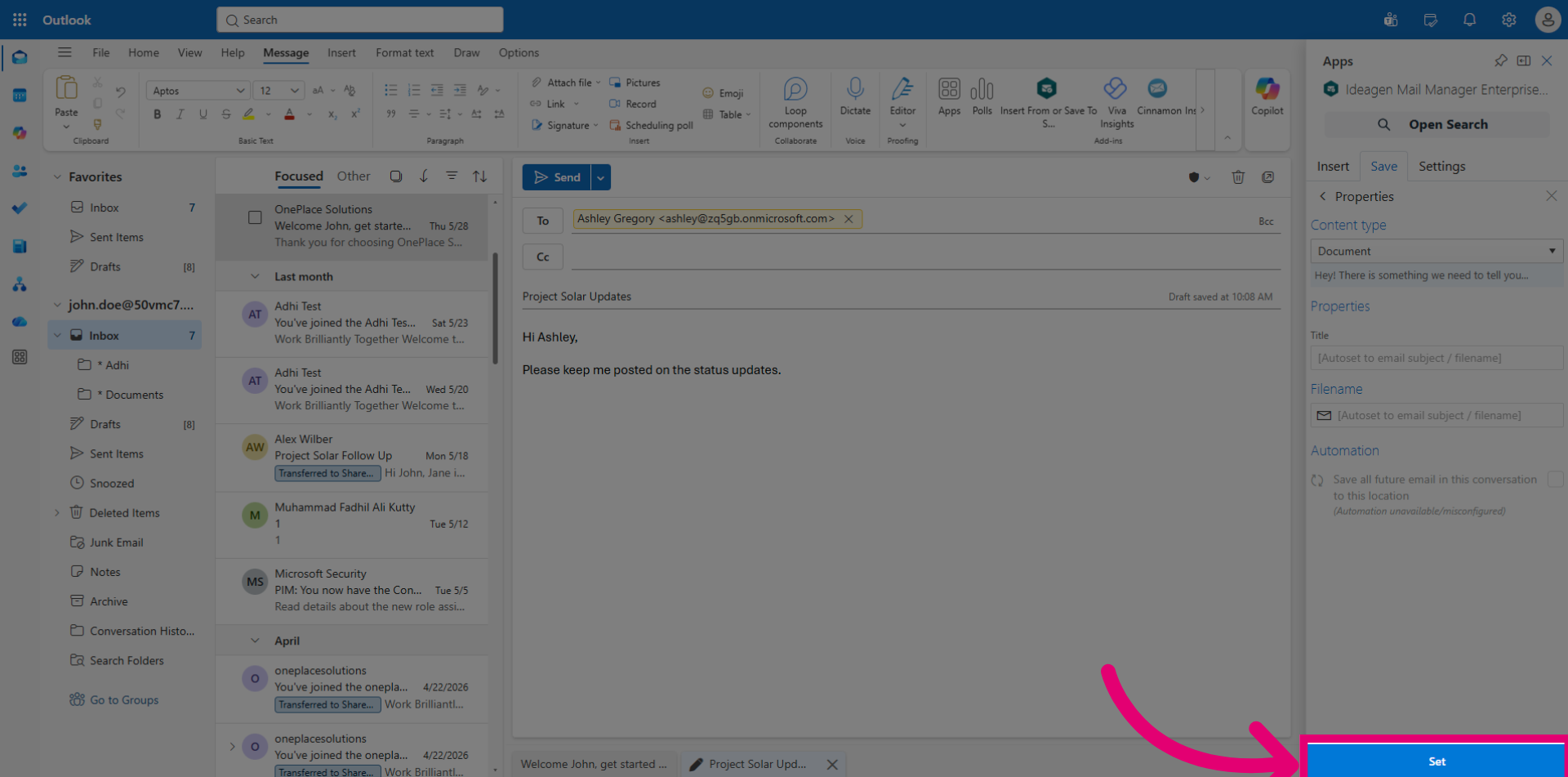
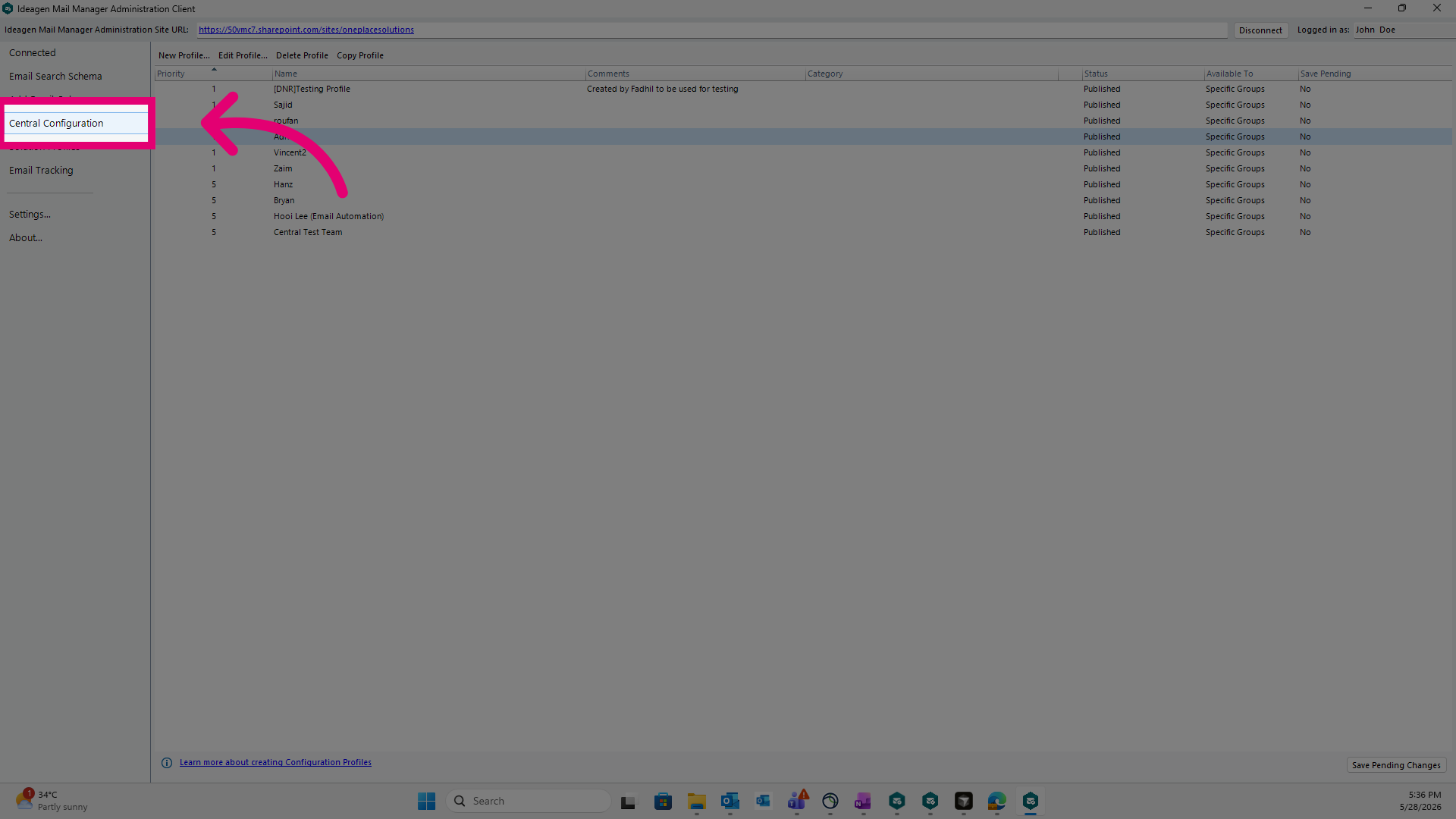
To customise the display or enhance the accuracy of Suggested Locations, open the Ideagen Mail Manager Admin Client and navigate to Central Configuration.
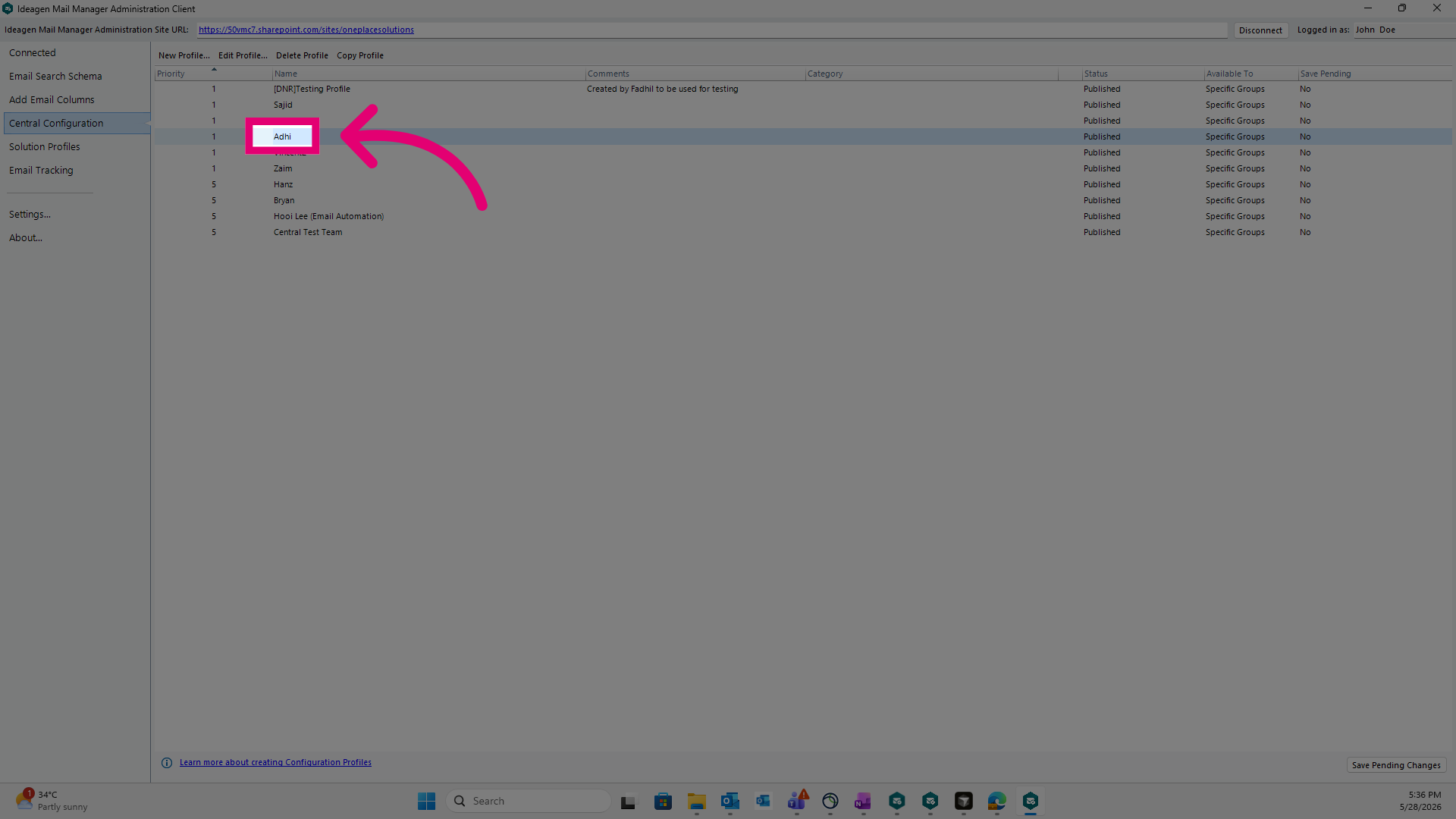
Select a user profile to open the user profile settings.
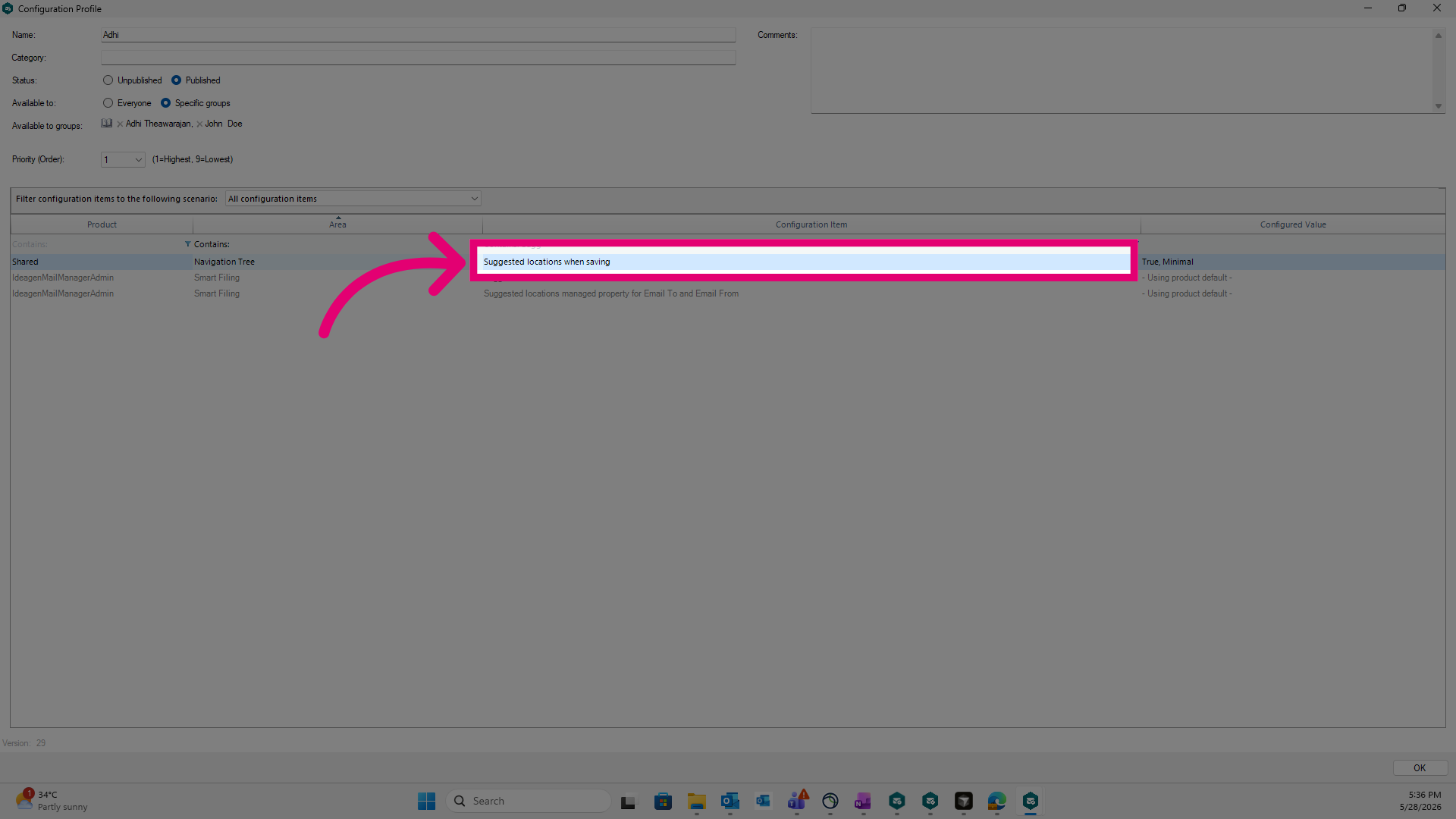
Type Sugg to begin searching for suggested locations.
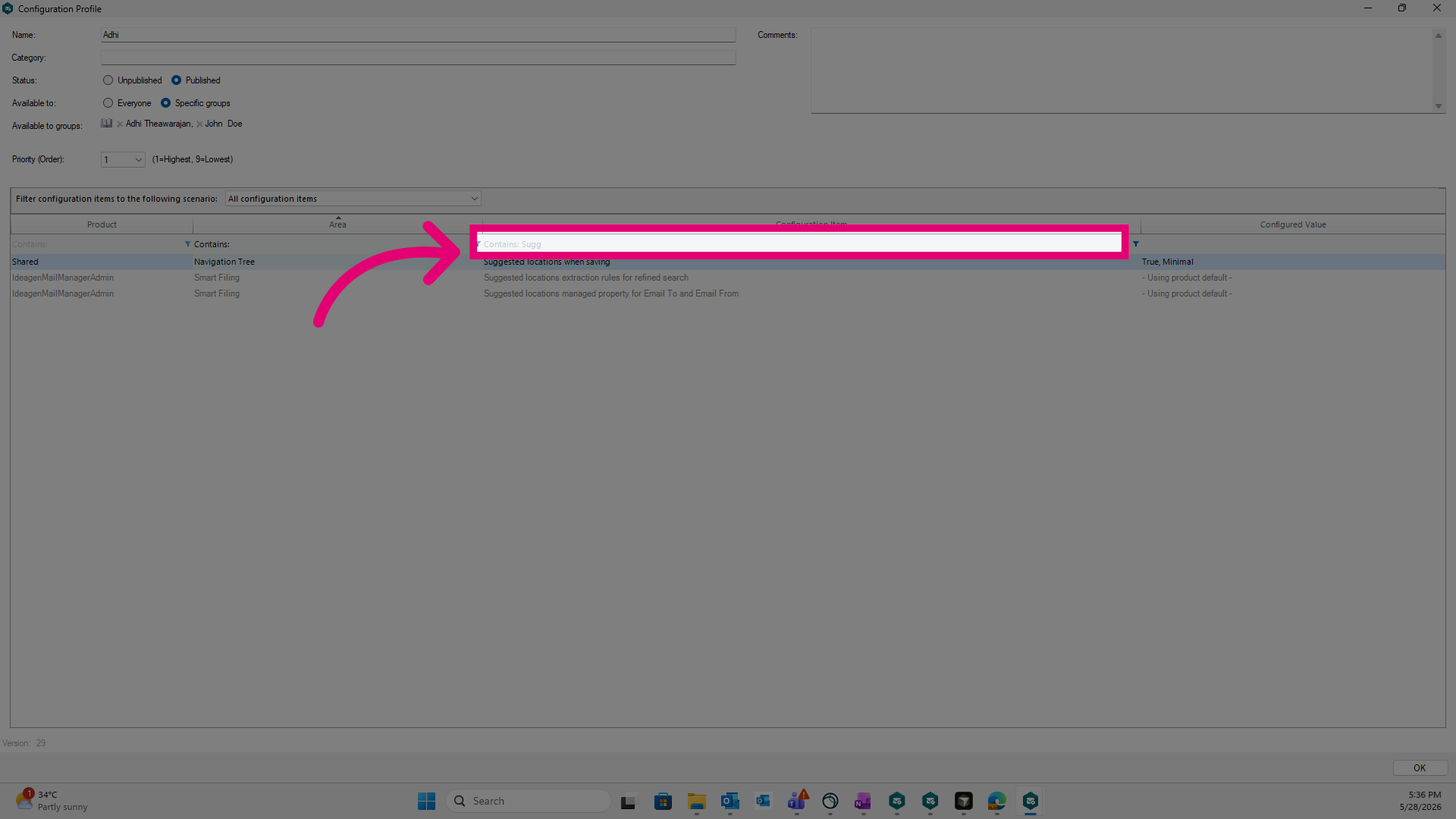
Select the Suggested locations when saving configuration item.
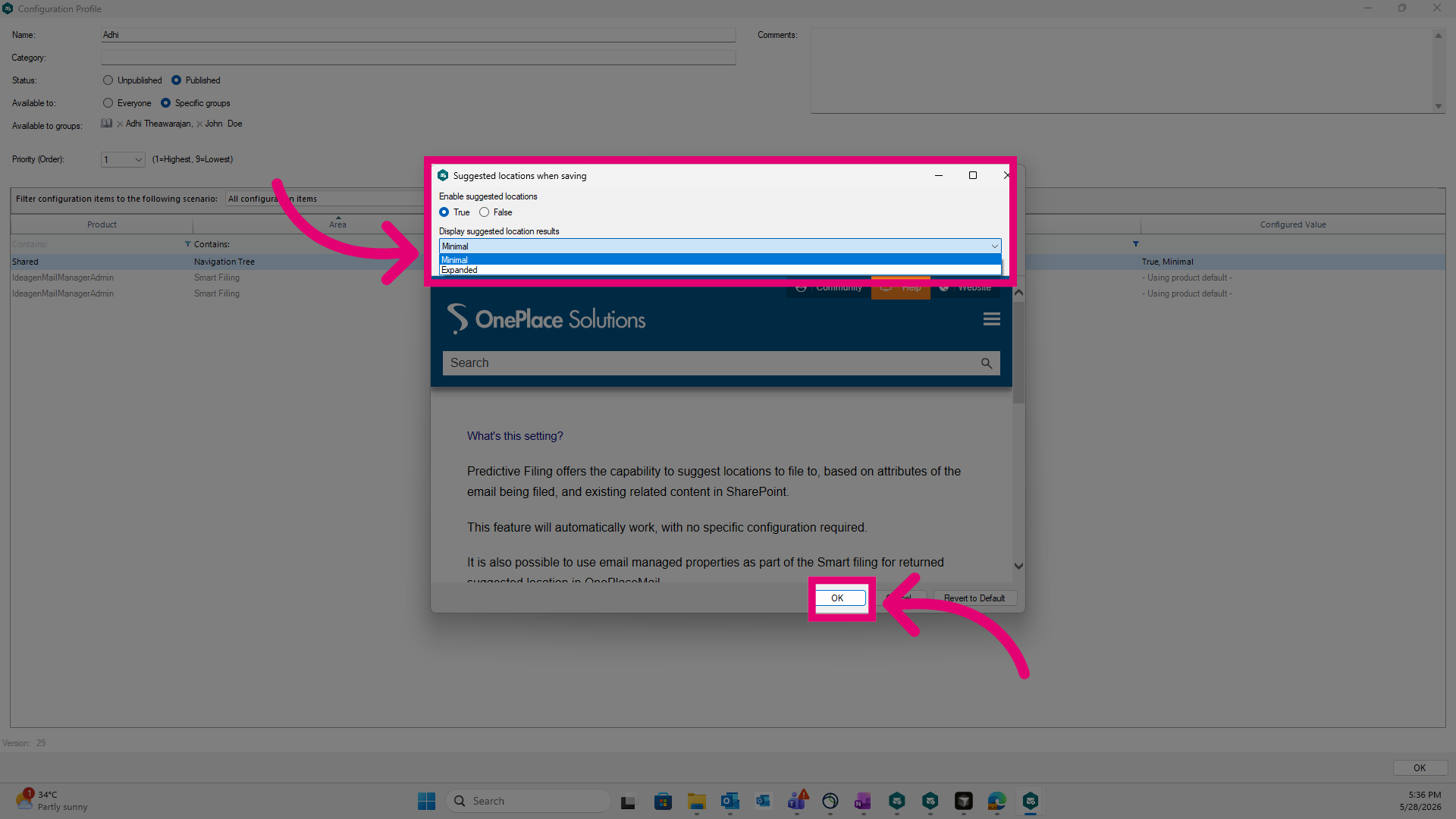
By default, suggested locations is enabled and displays up to three locations in the Ideagen Mail Manager app. To disable this, set Enable suggested locations to False. You can also set display suggested location results to expanded to show up to six locations. Click Ok once done.
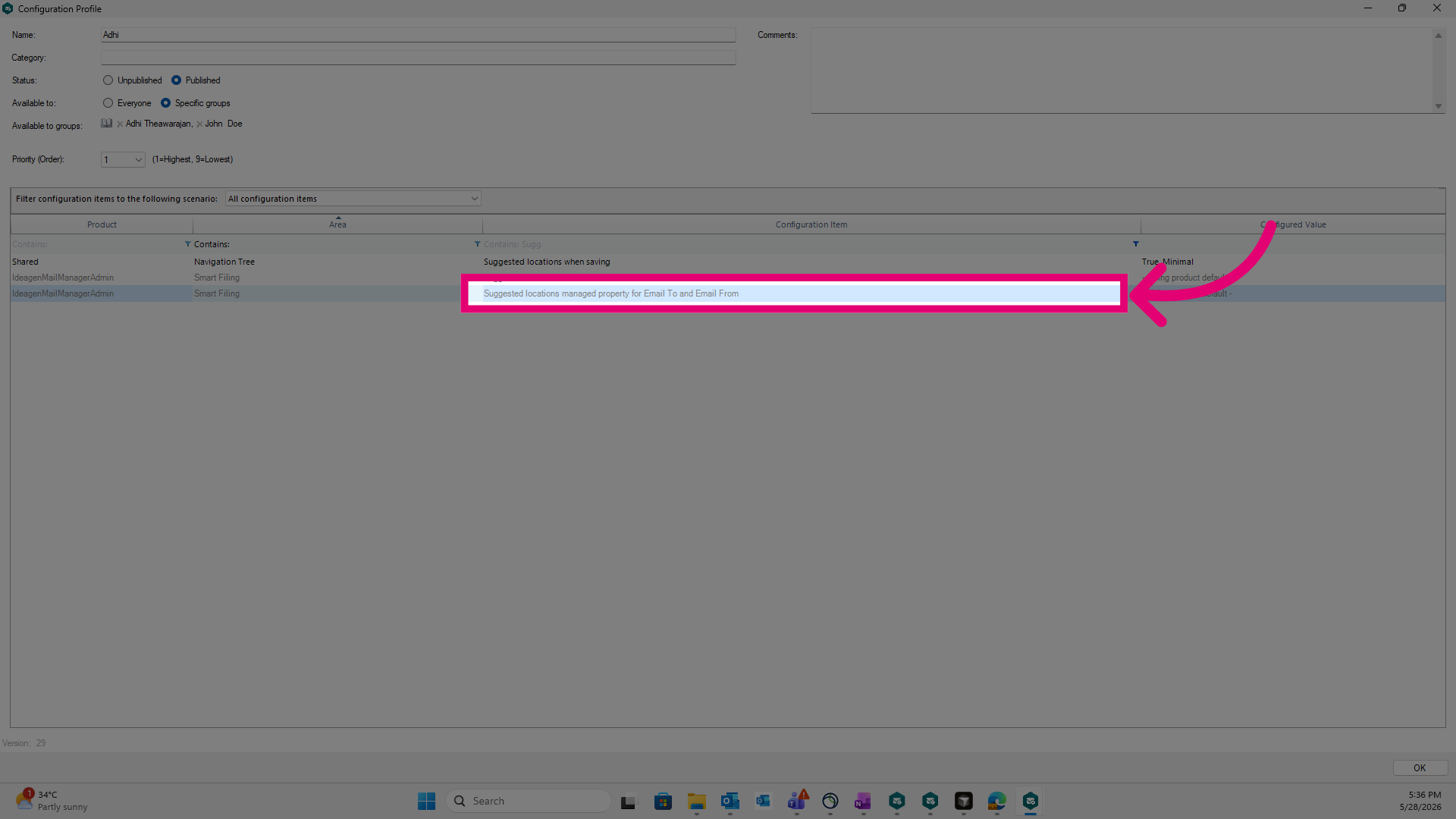
If your SharePoint environment has managed properties mapped for Email to and Email from metadata, you can use that to refine your search results. To do this, select the suggested locations managed property for Email to and Email from configuration item.
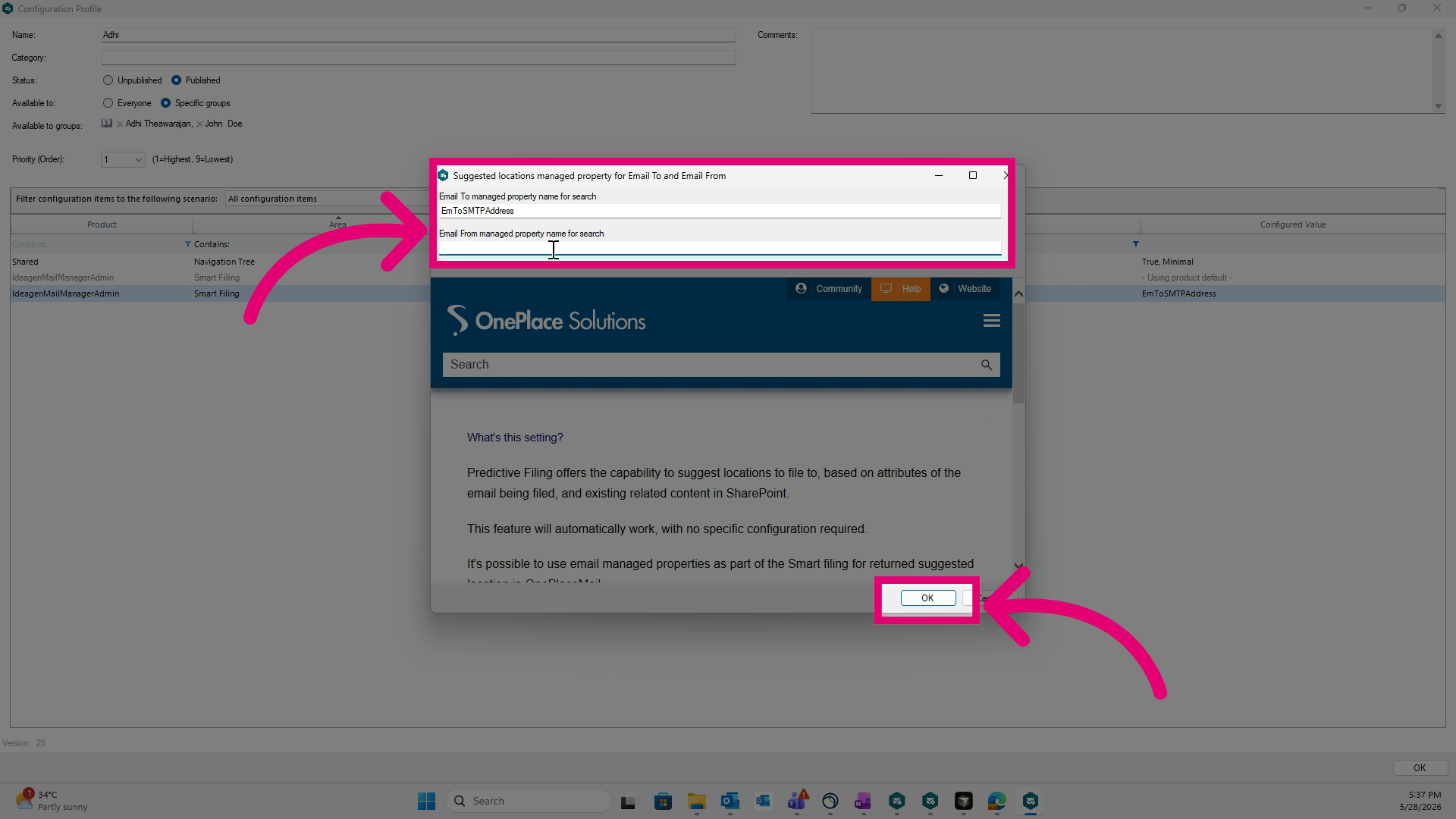
Specify the managed property names as mapped in your SharePoint Search Schema. Click Ok once done.
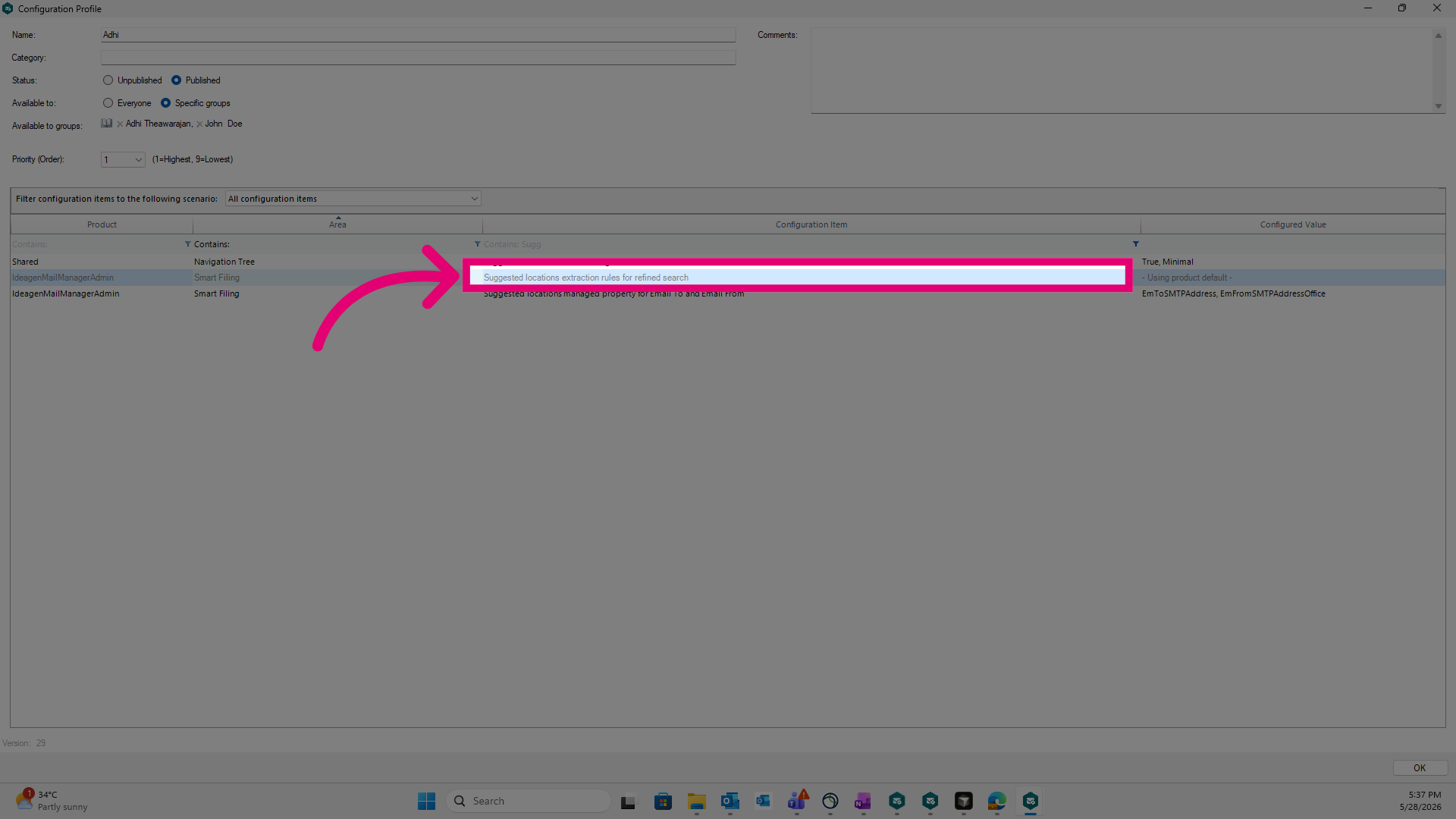
You have the option to configure regex rules to refine your search results. To do this, select the suggested locations extraction rules for refined search configuration item.
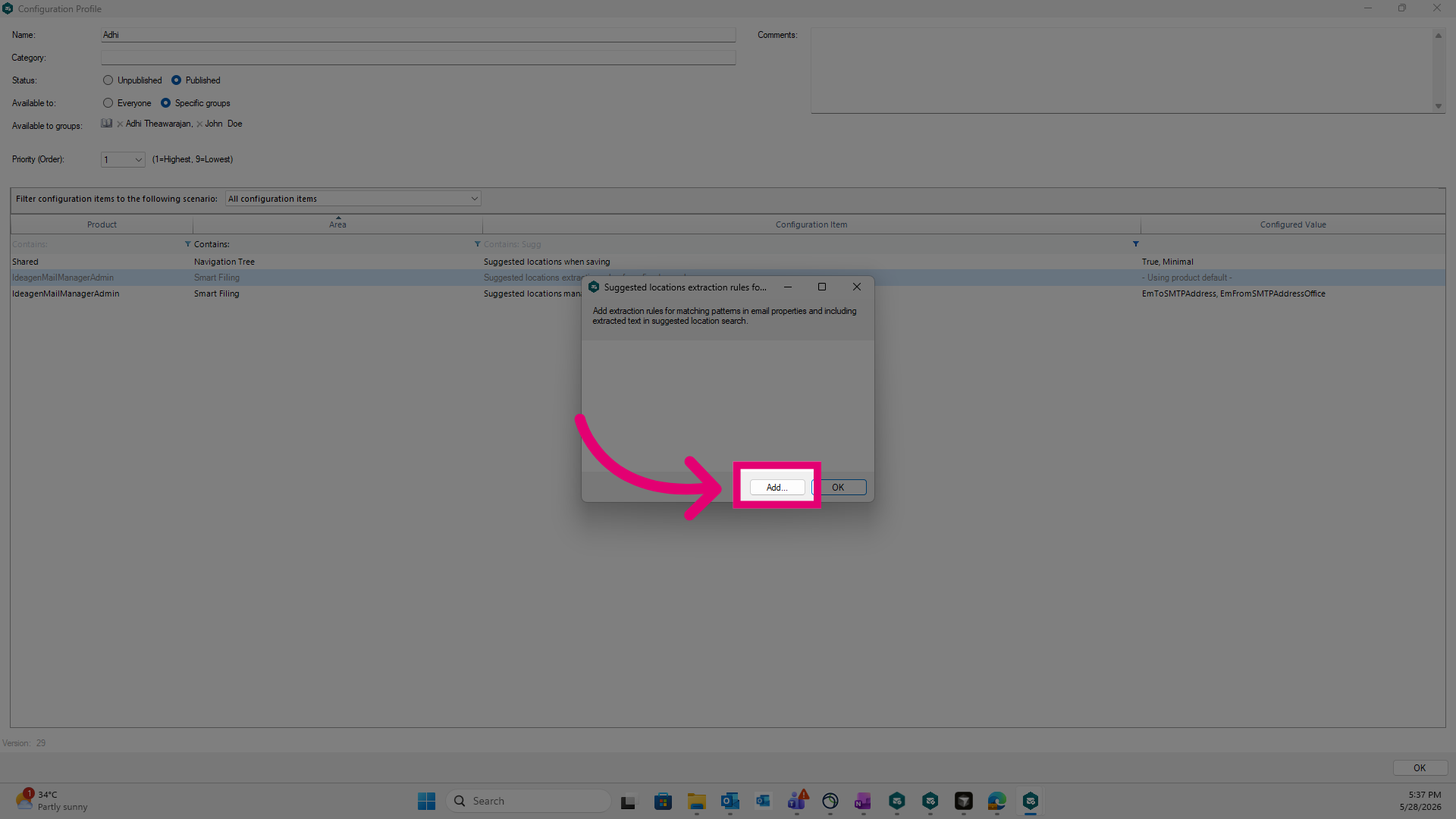
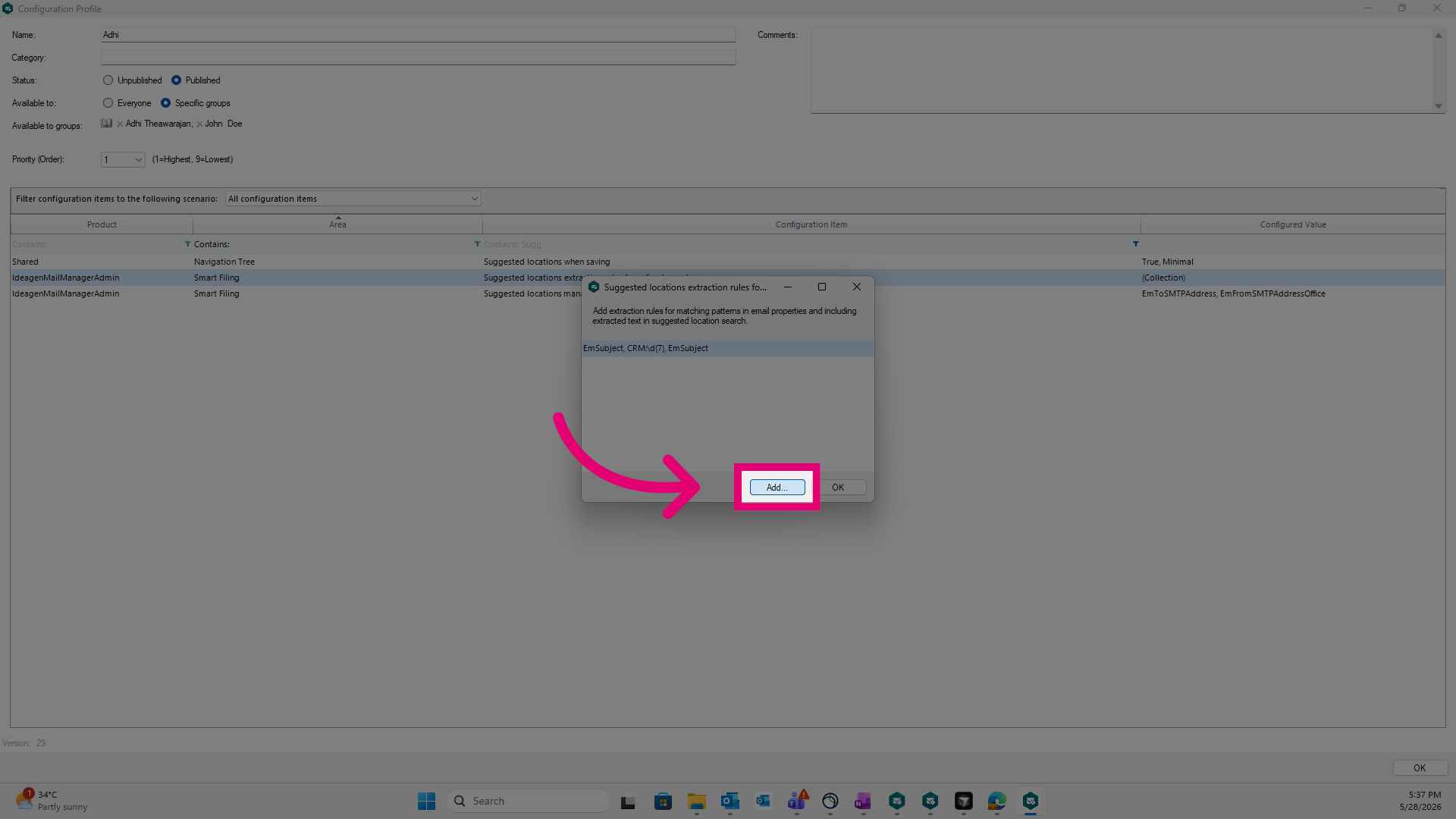
Click Add.
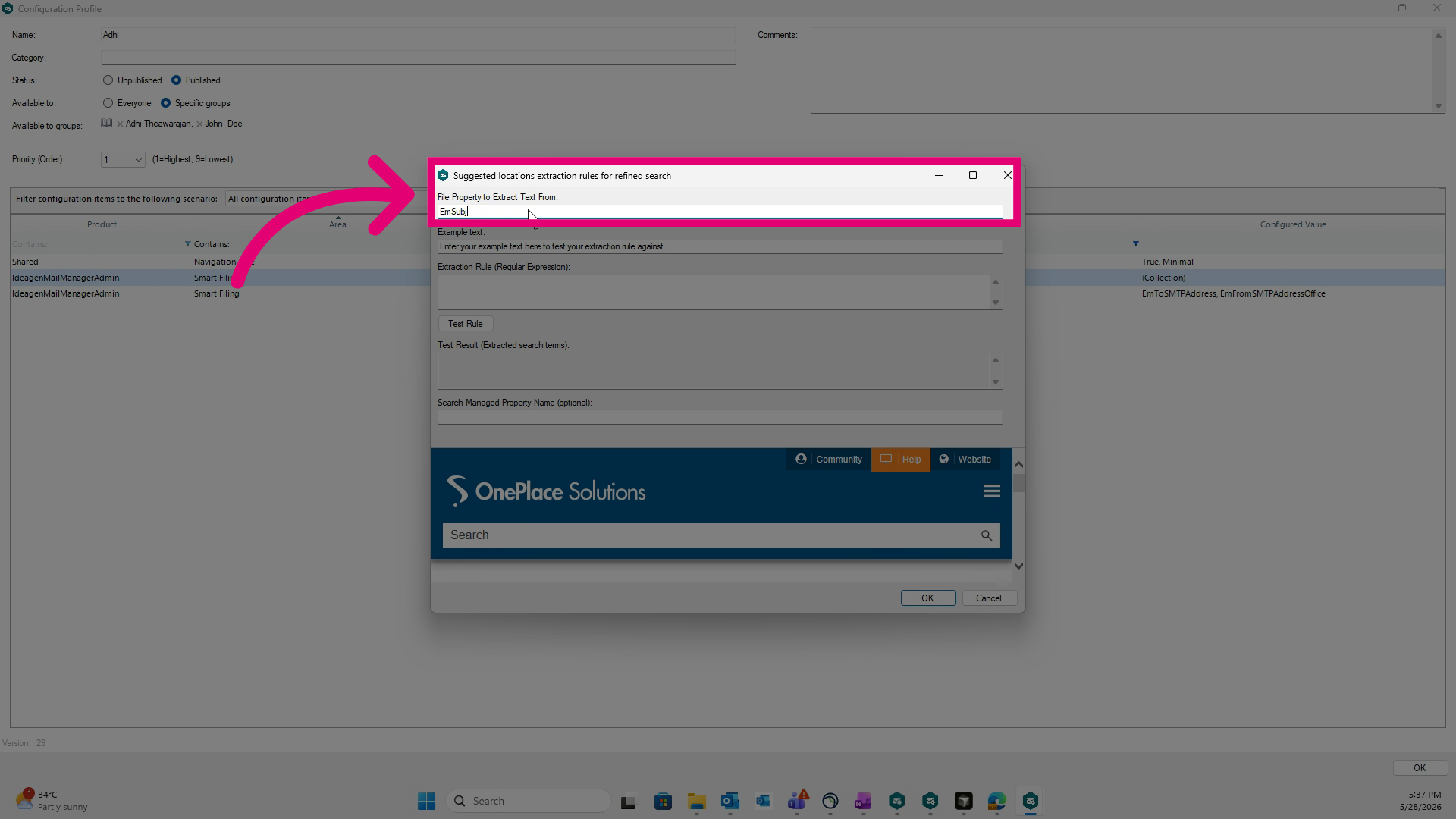
Specify the file property to be used to extract the text from.
Input your Regex rule and test it out.
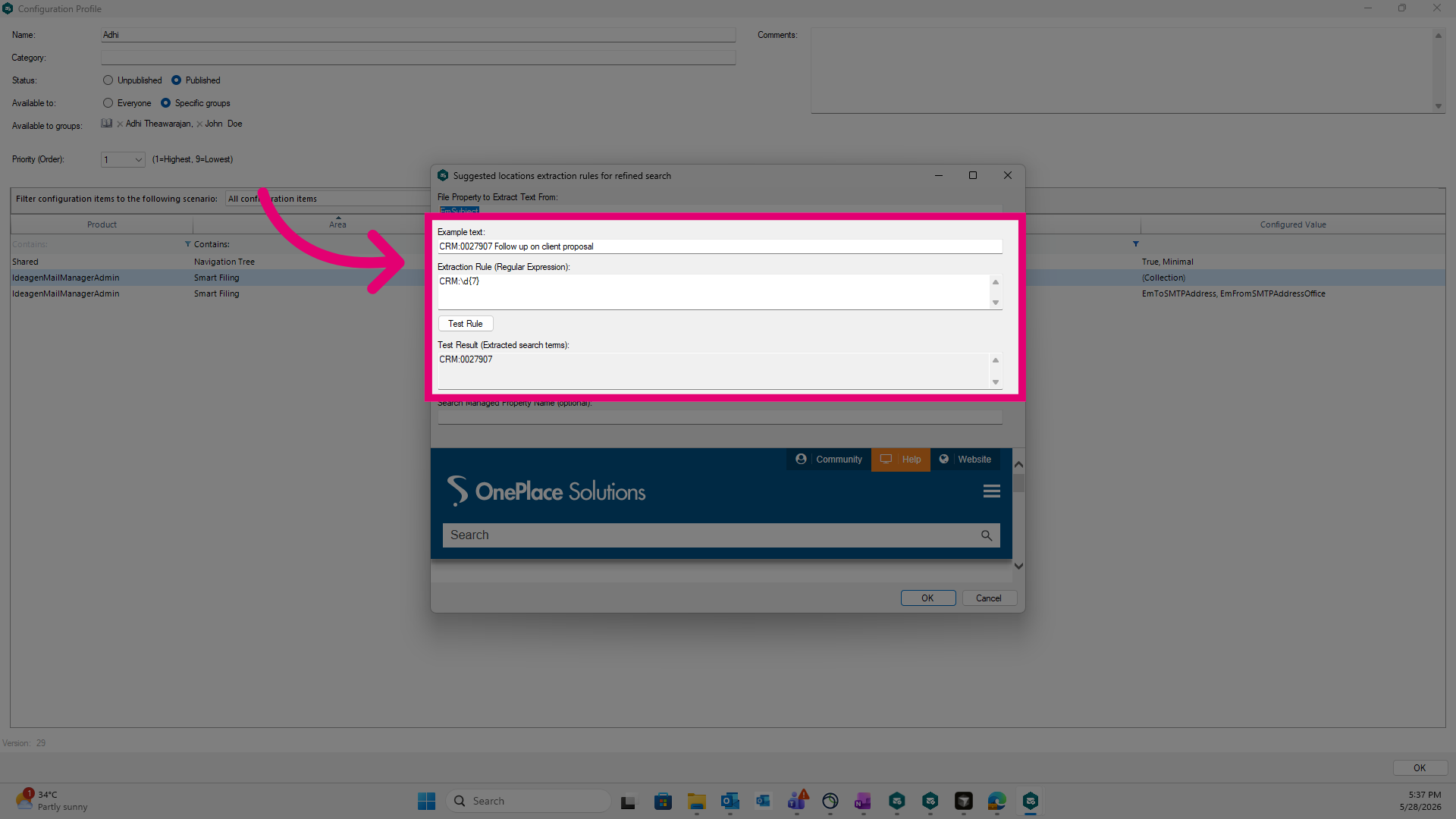
You also have the option to add a managed property in SharePoint, against which the search will happen. Click Ok once done.
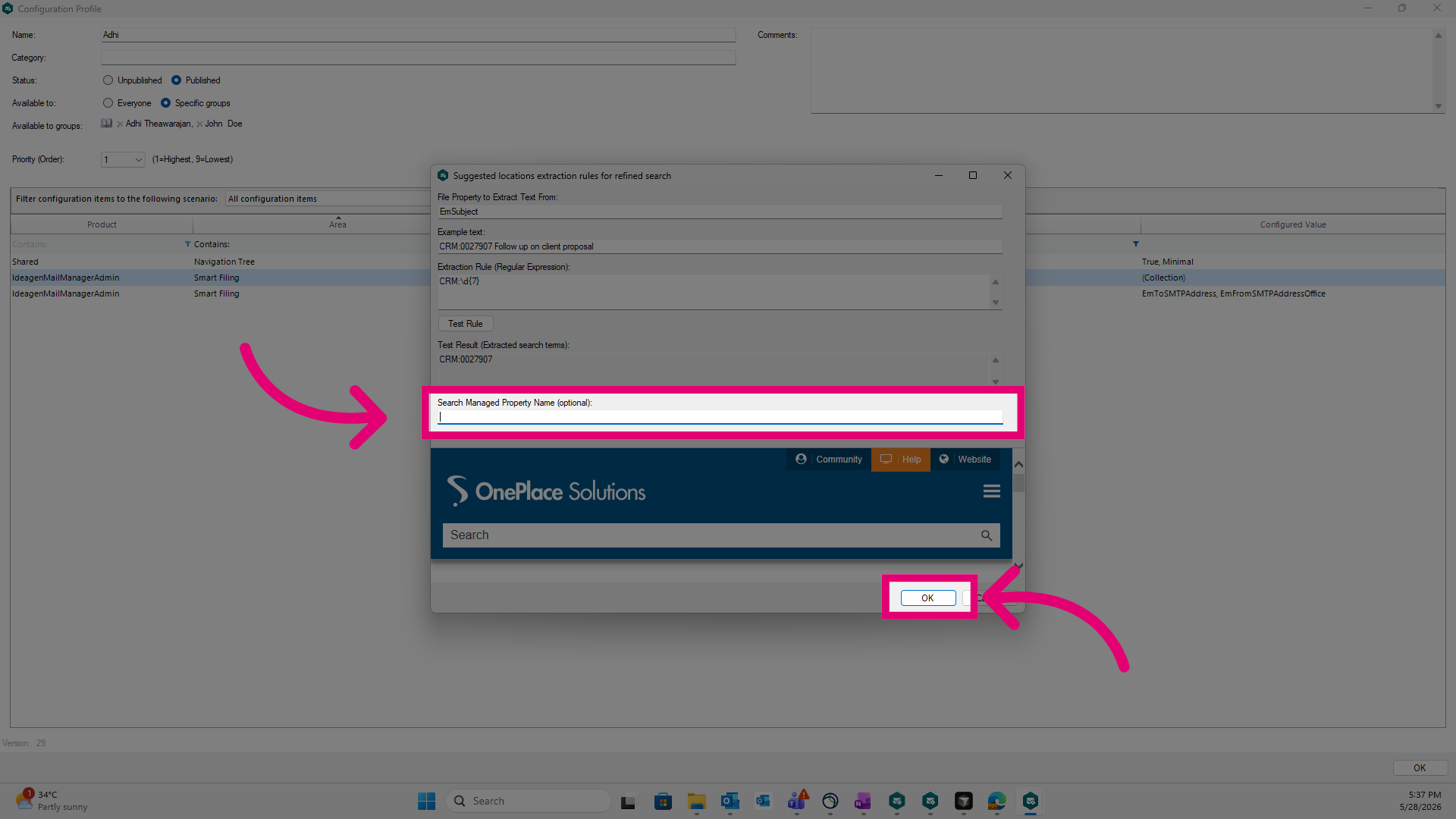
Click Add ... to include another extraction rule. If multiple rules are configured, only the first rule with a matching value is applied. If no rules match, this configuration is ignored for that email.
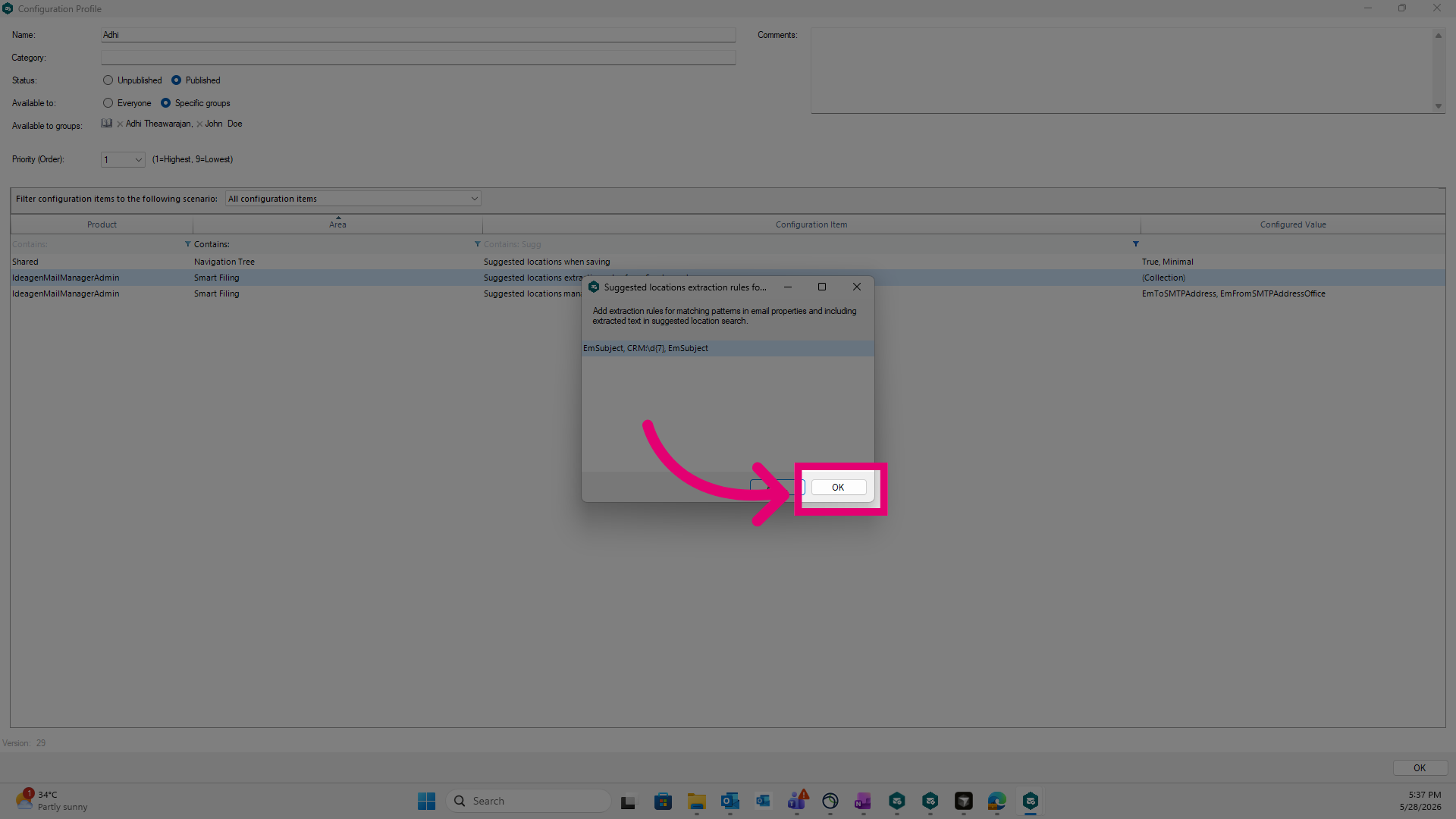
Click Ok to confirm the rules.
Click OK to finalize all configuration changes.
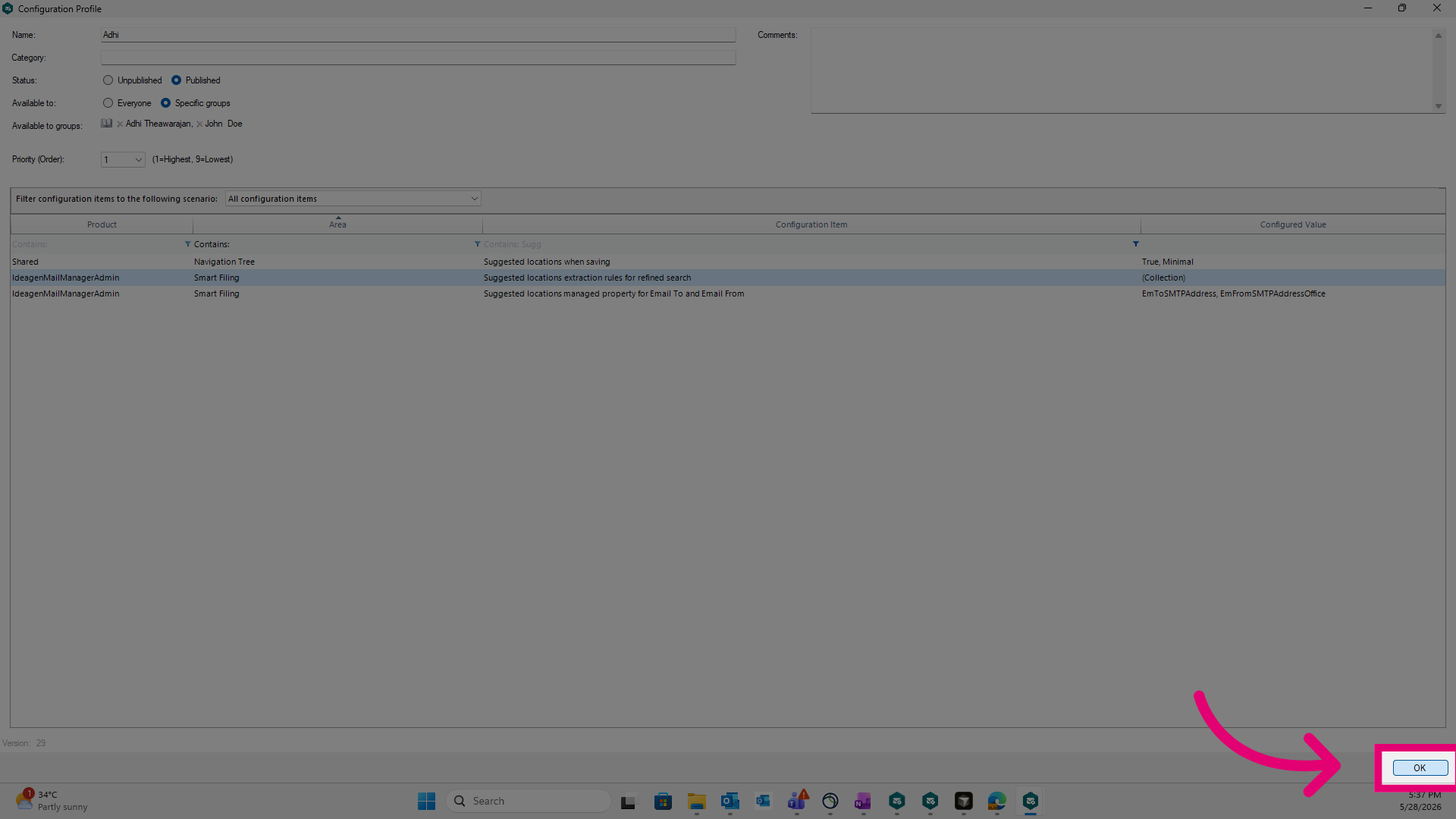
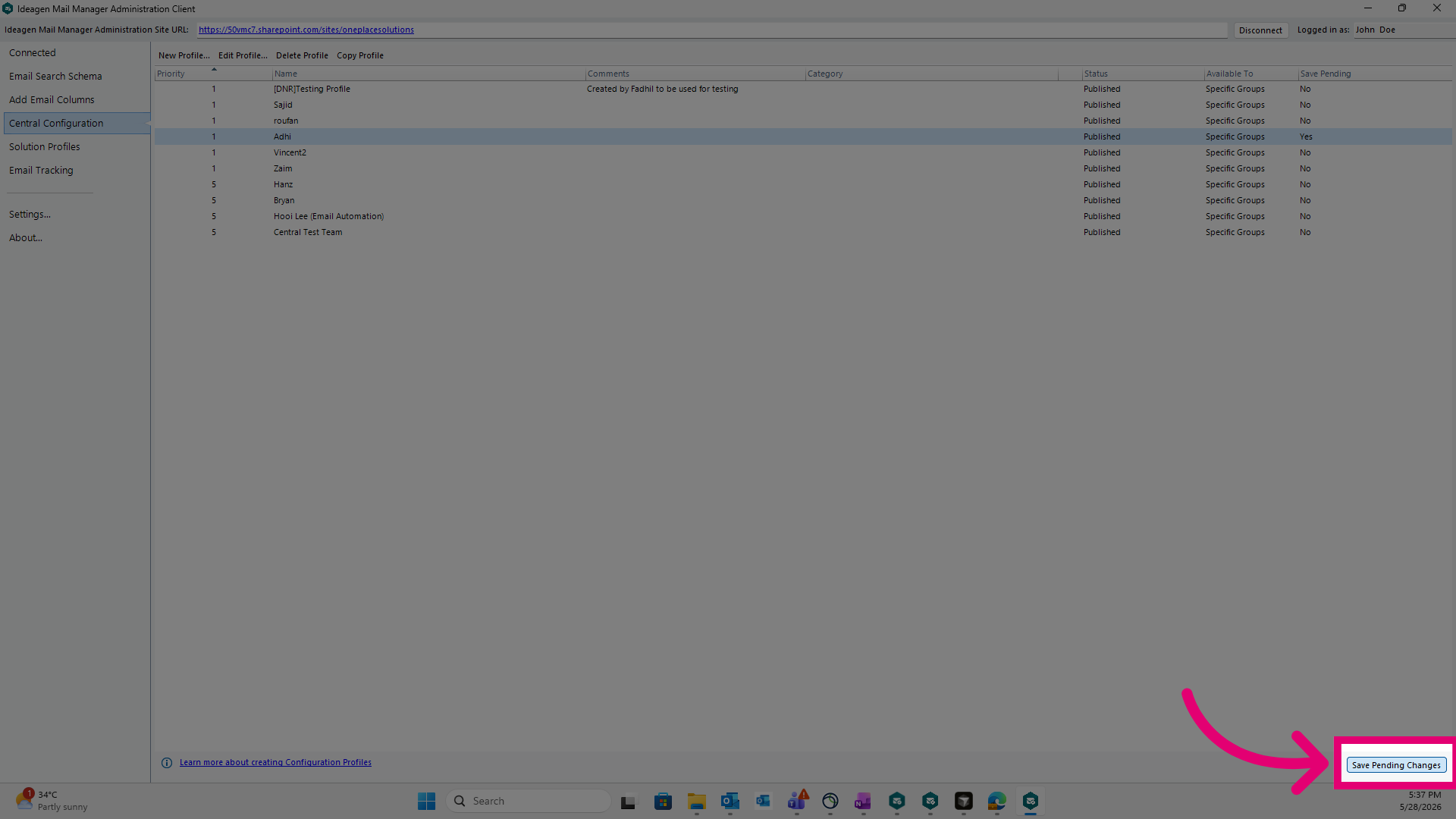
Click Save Pending Changes to save all your recent configurations for that profile.