


New article
Recently updated
Deploying the Ideagen Mail Manager Enterprise (formerly OnePlace) web app across an organisation

Who is this article for?
Administrators who want to learn to deploy the app across an organisation.
No elevated permissions are required.
This article outlines how to centrally deploy the Mail Manager app for Outlook using the Microsoft 365 admin center.
1. Deploy the add-in
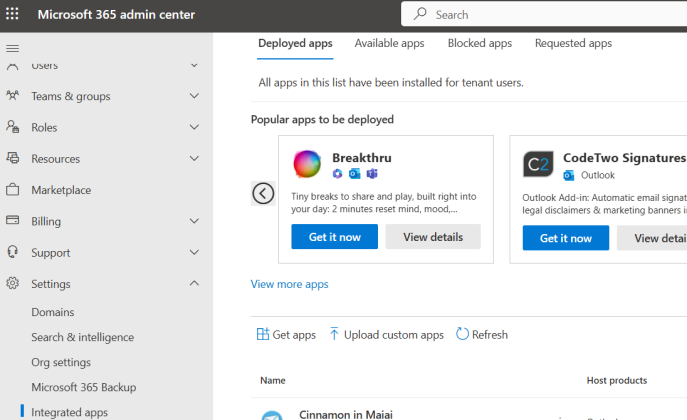
- Log into the Microsoft 365 admin center.
- Select Settings > Integrated Apps.
- Select Get apps
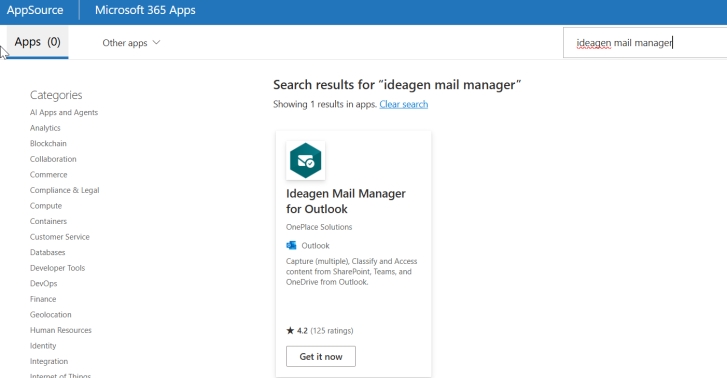
- Enter Ideagen Mail Manager in the search box.
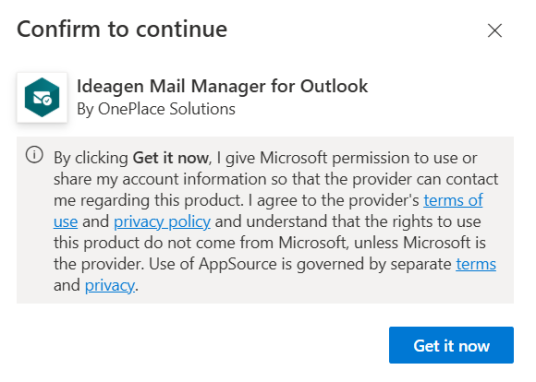
- Select Get in now
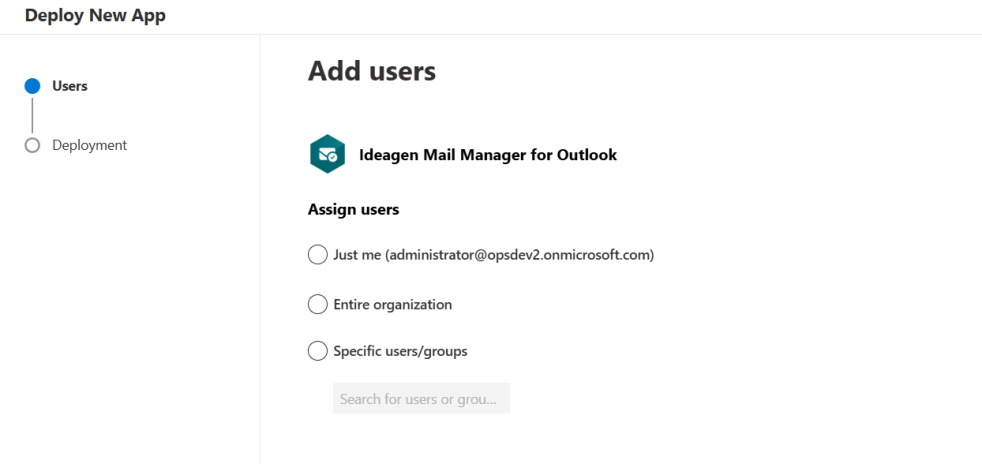
- Determine if all users should have access or set a specific group > click Next
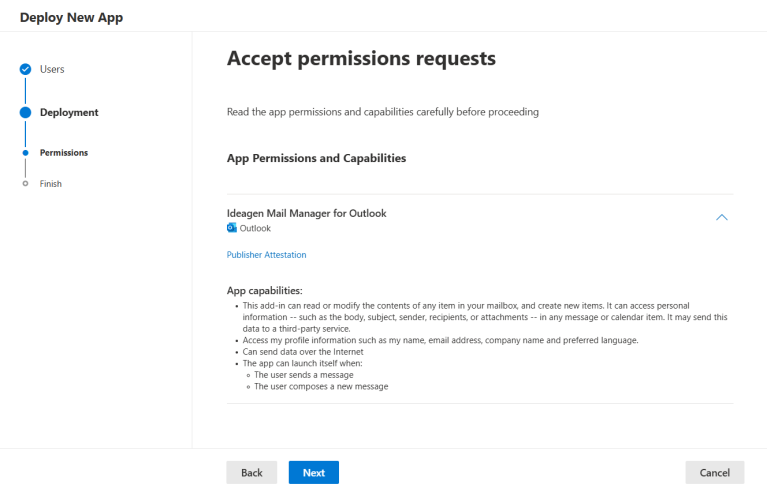
- Click Next to accept the permission requests
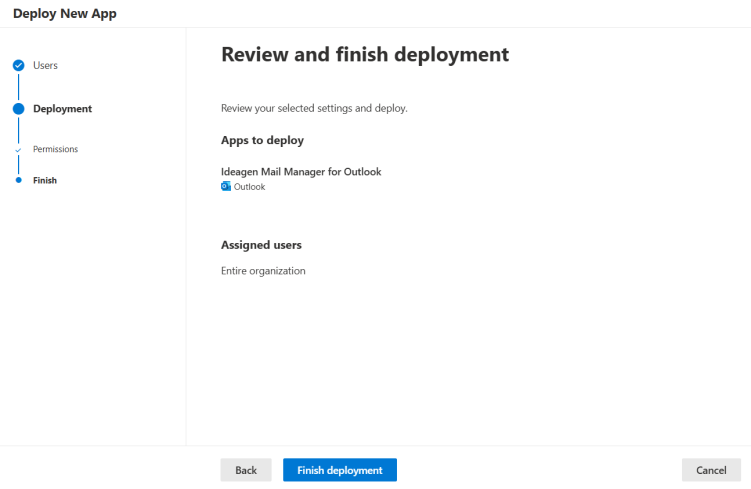
- Click Finish deployment
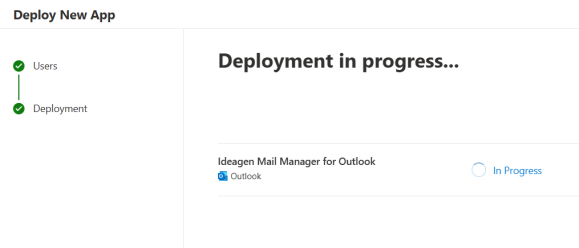
- Click Done
2. Managing and Adding users after deployment
If the Ideagen Mail Manager Enterprise app was deployed to Everyone, all users will see it in Outlook automatically.
If deployed to specific users, new users must be added manually:
- Browse to the Microsoft 365 admin center.
- Select Settings > Integrated Apps.
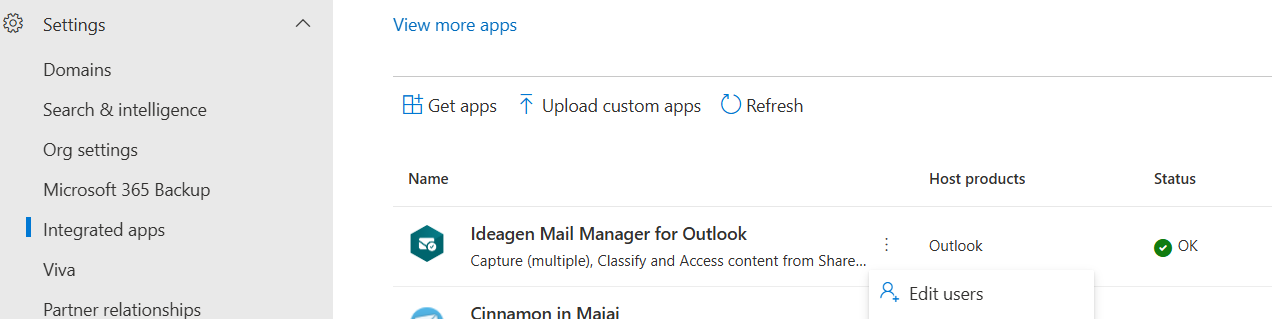
- Select the ellipses (three dots) next to the app name.
- Select Edit Users.
- Add additional usernames to the Specific users/groups list.
- Select Update.