


New article
Recently updated
How to update your Email Tracking client secret if it has expired

Who is this article for?
Administrators troubleshooting issues with email tracking services.
Administrator permissions are required for some steps.
The email tracking service requires a client secret to function.
The client secret is usually created with a 2 year limit. This is the maximum time for a client secret, until a new one must be created that the Email Tracking Azure Service can use to function successfully.
1. How to check if your client secret has expired
- In the Microsoft Entra admin center, in App registrations, select your application - OnePlace Email Tracking
- Select Certificates & secrets > Client secrets
- You will see the expiration date as shown below.
1.1. How to create a new client secret and apply it
This can be done by creating a new client secret (2 year limit is the max that can be set)
In your Microsoft Entra admin center > App Registrations > 'OnePlaceMail Email Tracking' App Registration > Certificates & Secrets > New client secret.
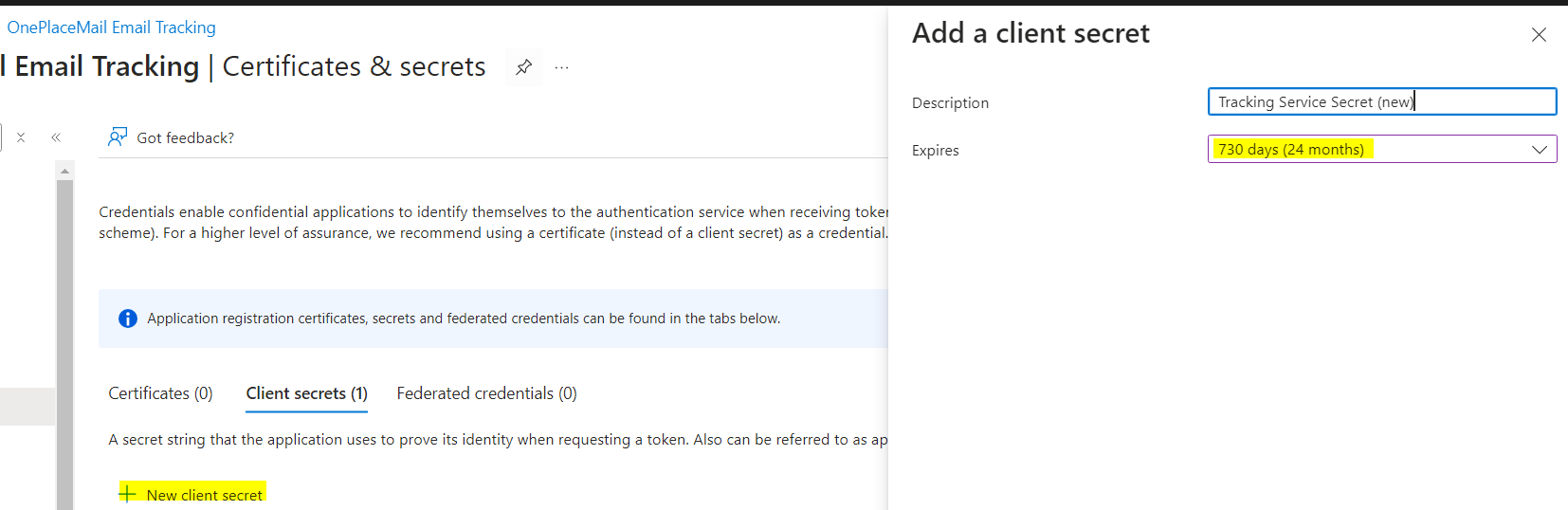
Copy the client secret Value to notepad for use in your Email Tracking function app. (as shown below)
This secret value is never displayed again after you leave this page.
** Please note. Copy the "Value", Not the "secret ID" see below.
After copying the new client secret value created to Notepad, you will need to navigate to the ‘Function App’ area in your Azure portal here.
Click on your Email Tracking Function App > go to Settings > Environmental variables > search for ‘ClientSecret’
Then you can click on the ‘EmailTrackingClientSecret’ and update the value with the new client secret that you’ve copied to Notepad
-
Click ‘Apply’ then click Apply again on the environment variables page.
Note: If you need to make sure you are updating the Client Secret within the correct 'App Registration'.
You can confirm this against the 'EmailTrackingAppId' environment variable that the Email Tracking service is using.
Go To Azure Portal > Function App > your Email Tracking > Environment Variables > Email tracking app IDThis should match the app id at:
Entra Admin center > App Registrations > OnePlace Mail Email Tracking > Overview > Application Client ID