


New article
Recently updated
Configuring SharePoint search schema

Who is this article for?
Admins who want to learn to configure a SharePoint search schema.
Administrator permissions are required with tenant-level access.
The Administration Client includes a tool for configuring the SharePoint Search Schema with email-specific columns. This lets users view, search, sort and filter email metadata in the Search application.
For answers to common questions, see SharePoint search schema FAQs.
Understanding the prerequisites
Before starting, ensure you have the following:
- Ideagen Mail Manager Enterprise Administration client version 9.1.0 or later
- Search schema currently supports only the default content type OnePlaceMail Email (support for custom types is coming soon)
- Configure the email search schema once per tenant to map crawled to managed properties and create email columns for the site URL
- For new sites under an existing tenant, run Add Email Columns to enable the Search App to populate email metadata
To set up the required permissions:
- SharePoint Administrator or Global Administrator to access search schema settings
- Site Collection Administrator access to Ideagen Mail Manager Administration Client
- Permissions to create folders and upload files to the target library
To access the required environments:
- SharePoint Online (not supported on SharePoint On-Premises)
- Ideagen Mail Manager Administration Client installed
- Active connection to an Ideagen Mail Manager Enterprise administration site
Note: For multi-geo environments, see Configuring SharePoint search schemas for Multi-Geo.
Deploying the seed folder
The tool creates a seed folder with a sample .eml file containing email columns and values to initiate the SharePoint crawling process.
To deploy a seed folder:
- Launch the Ideagen Mail Manager Administration Client from the desktop.
- Select Email Search Schema from the left navigation.
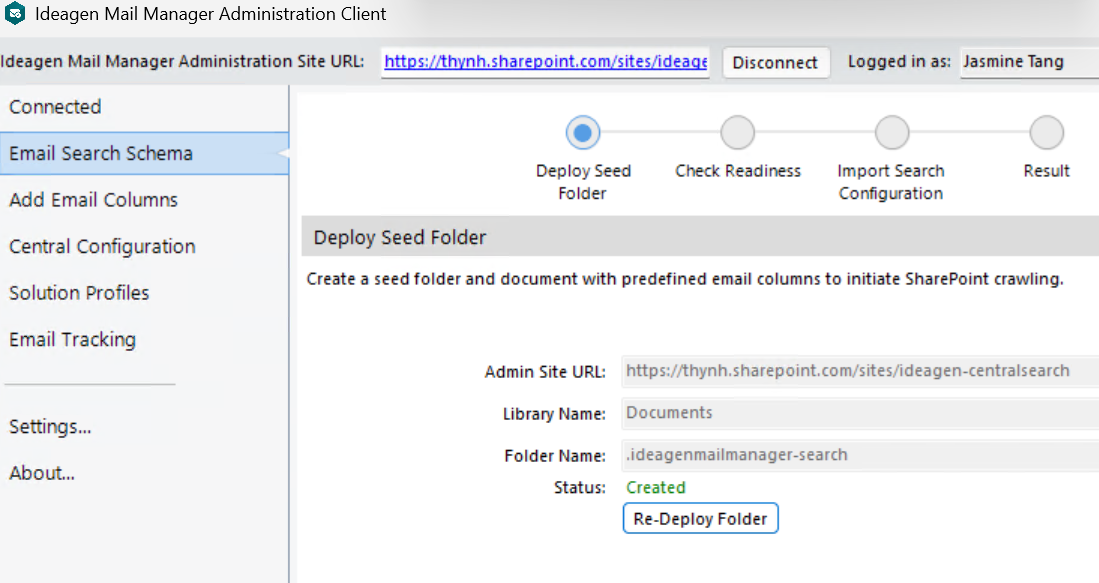
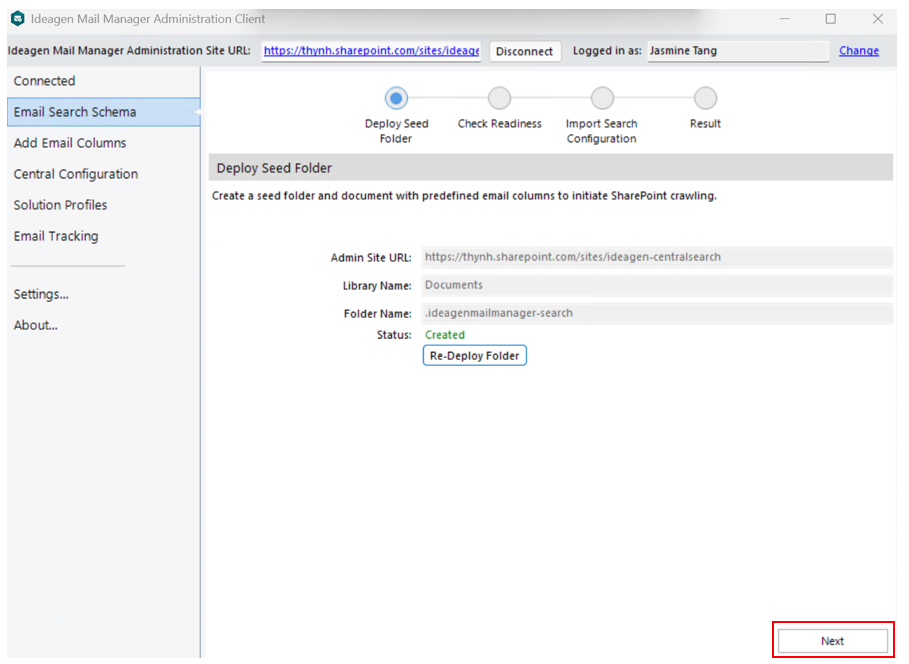
- Review the default deployment settings:
- Admin Site URL - Your connected SharePoint admin site (automatically populated)
- Library Name - Documents (default library for deployment)
- Folder Name - .ideagenmailmanager-search (hidden folder for seed data)
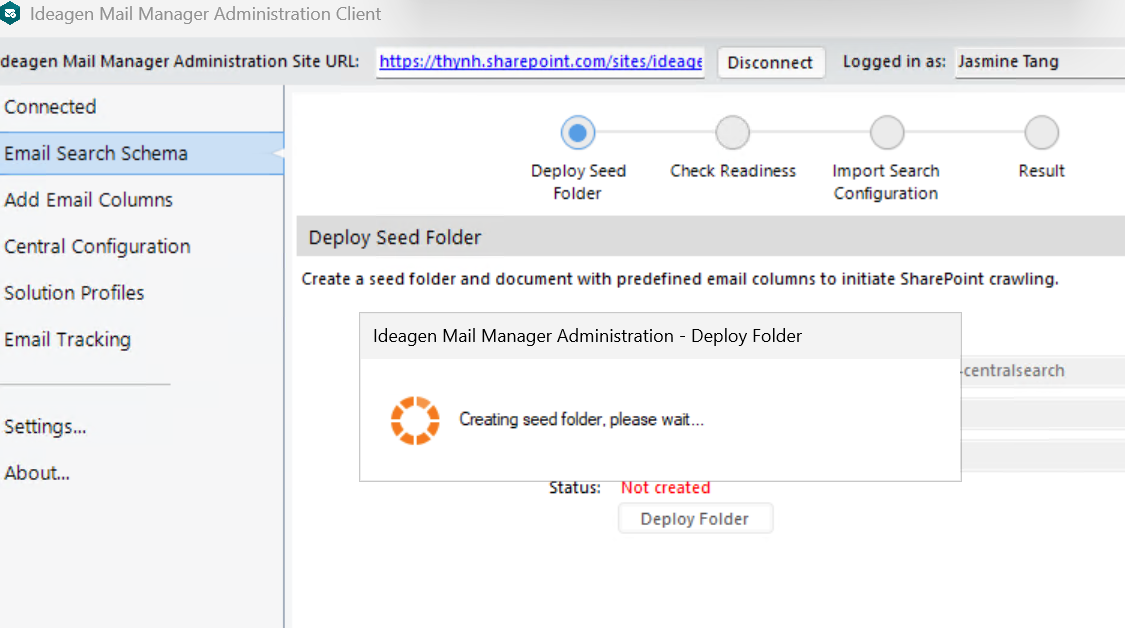
- Select Deploy Folder.
- Wait for the deployment to complete.
The status will update automatically from Not created (displayed in red) to Created (displayed in green) once the deployment is successful.
- Click Next.
Checking readiness
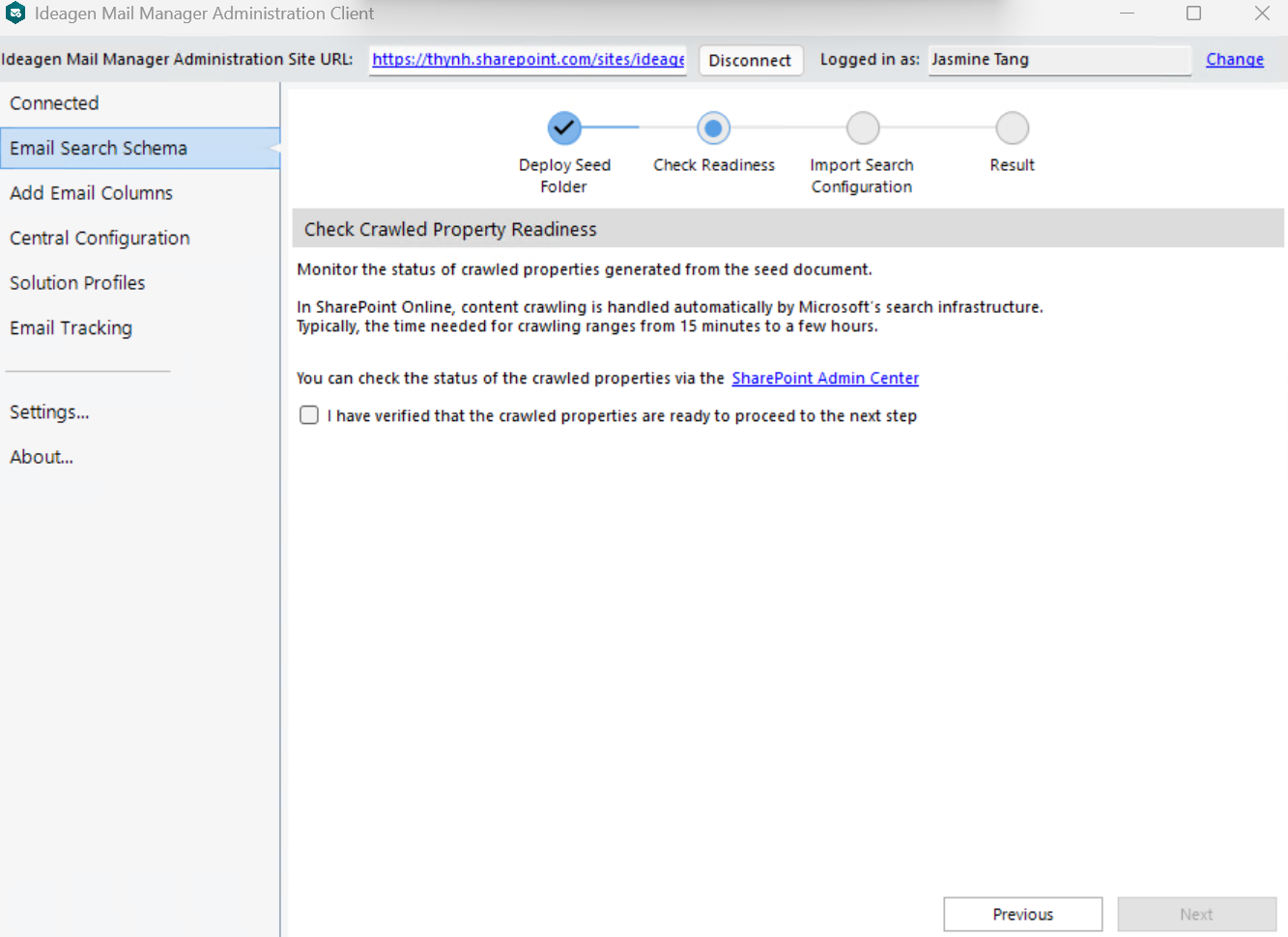
After deployment, SharePoint needs time to crawl email columns and create the corresponding crawled properties, ensuring they are ready for mapping.
Note: Crawled properties can take from minutes to hours to appear in the search schema. Once started, the crawl runs on Microsoft's search infrastructure even if you disconnect from Ideagen Mail Manager Administrator Site URL or close the Administration Client.
To check if crawled properties are available:
- Click the SharePoint Admin Center link.
- Search for crawled properties starting with
ows_Em.
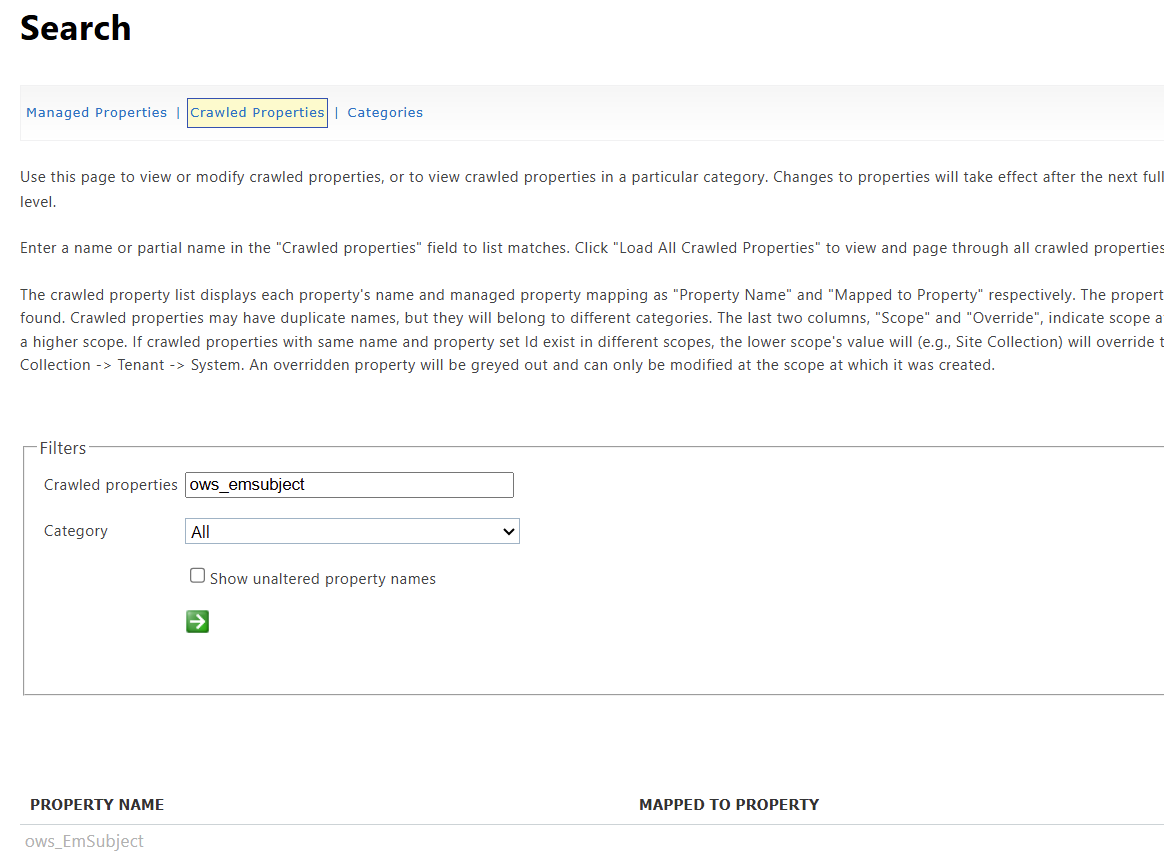
- Ensure that the following crawled properties are listed:
ows_EmSubjectows_EmFromows_EmFromNameows_EmToows_EmToAddressows_EmDateSentows_EmCategoryows_EmAttachCountows_EmCcows_EmCcSMTPAddress
- Return to the tool.
- Tick I have verified that the crawled properties are ready to proceed to the next step.
- Click Next.
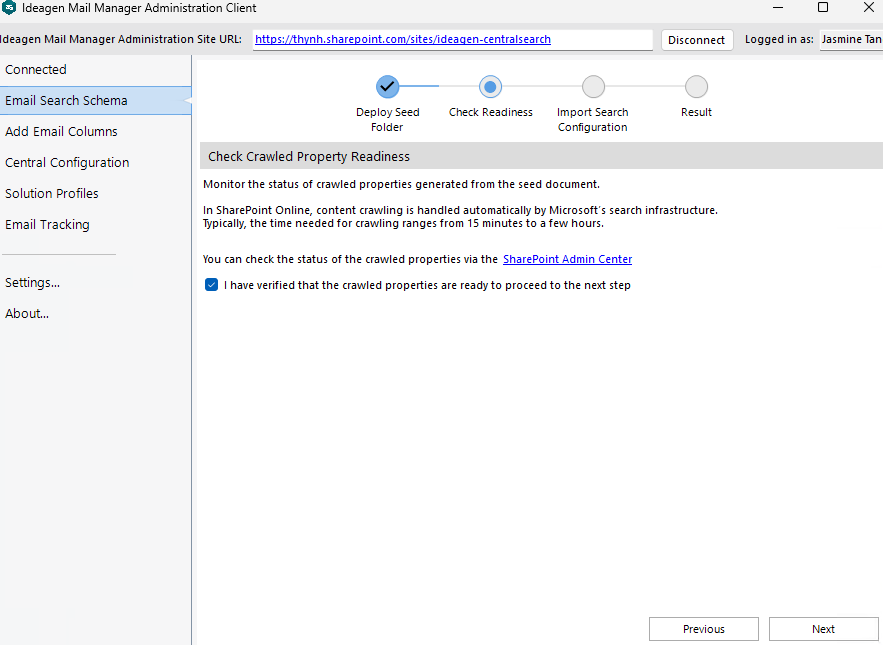
Important: If the crawled properties do not appear within 24 hours, return to Step 1 and perform a Re-Deploy Folder action.
Importing the search configuration
This step generates a search configuration file that maps crawled properties to the defined managed properties, enabling search and filter functionality for email content within the Search Application.
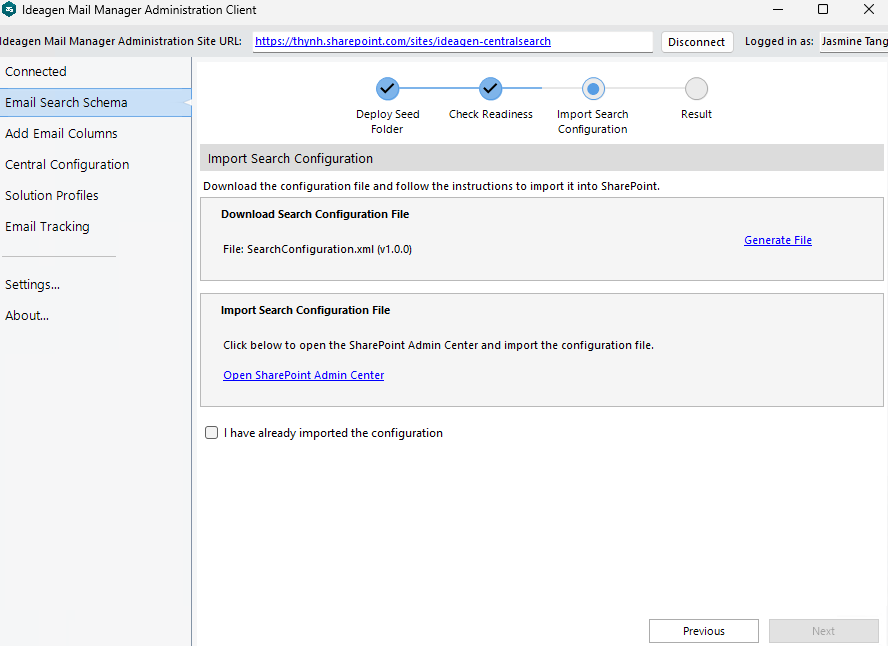
Downloading the file
To download the configuration file:
- Click Generate File in the Download Search Configuration File section.
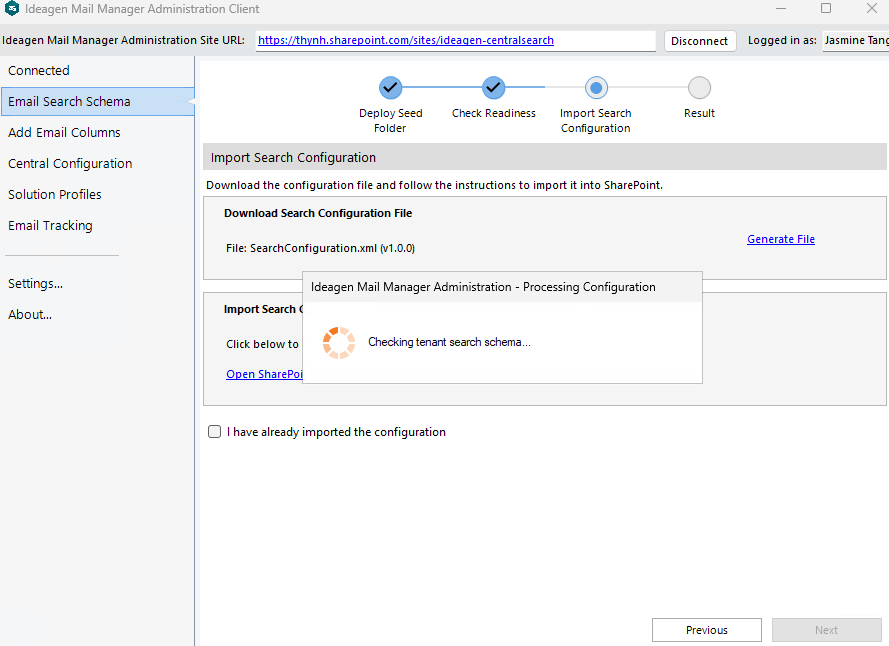
- Select a location.
- Click Save.
A message notification will appear confirming that the file has been successfully generated.
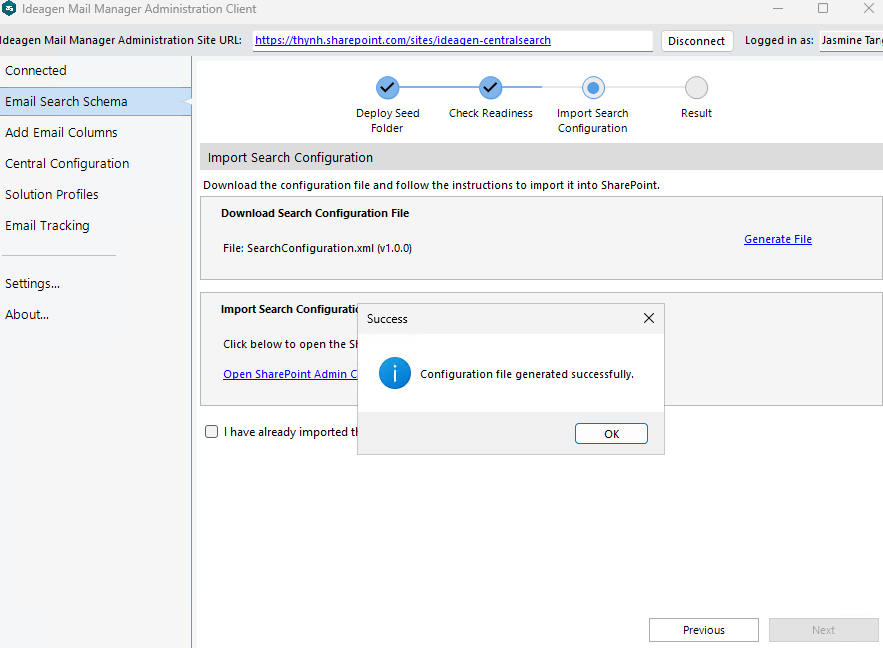
Note: When the system detects managed properties that were not defined by the Email Search Schema tool but are linked to the crawled properties, a message will be prompted. For example, if
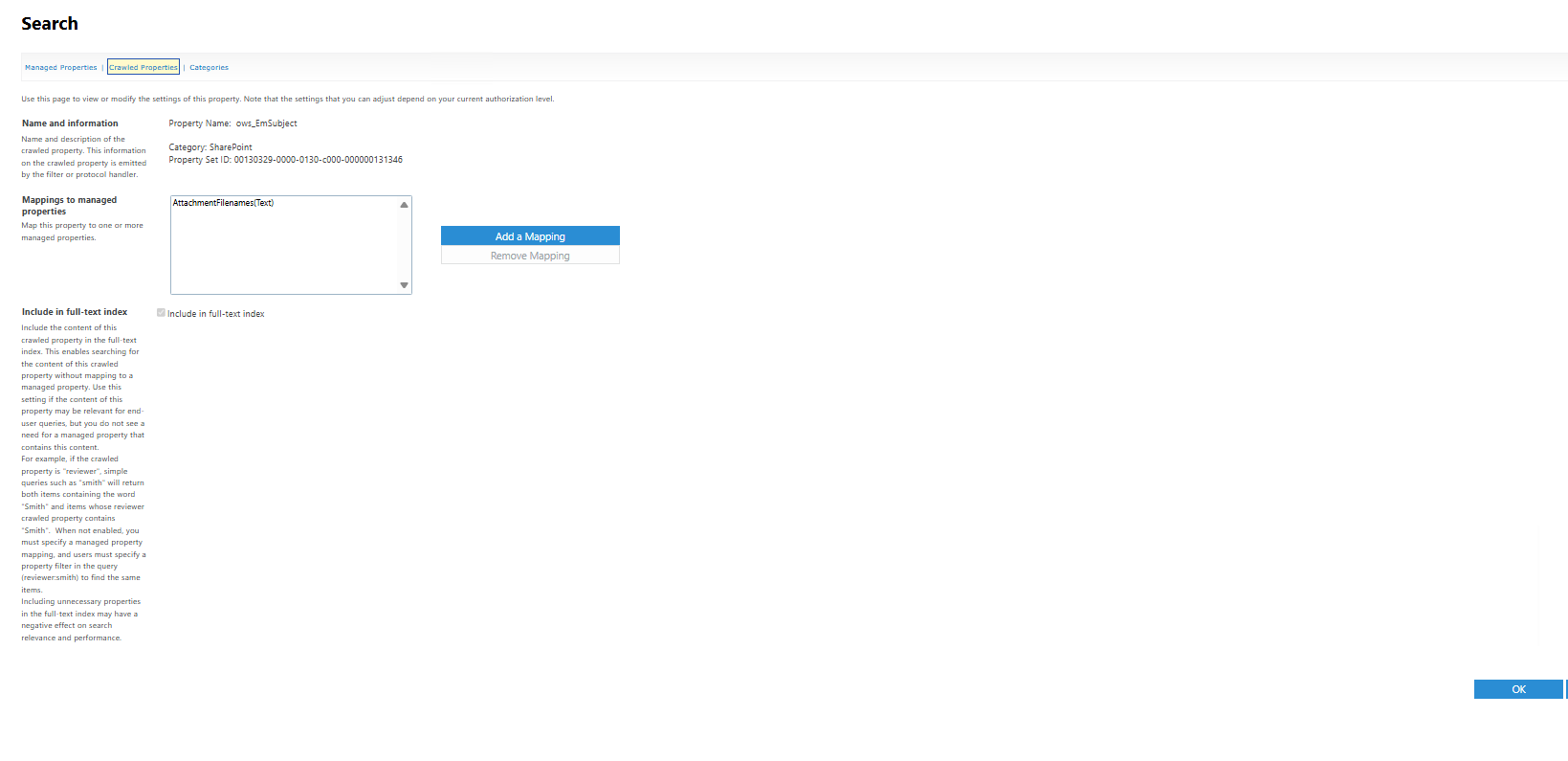
ows_EmSubjectis mapped to a managed property that was not defined by the Email Search Schema tool, you will need to remove the mapping.
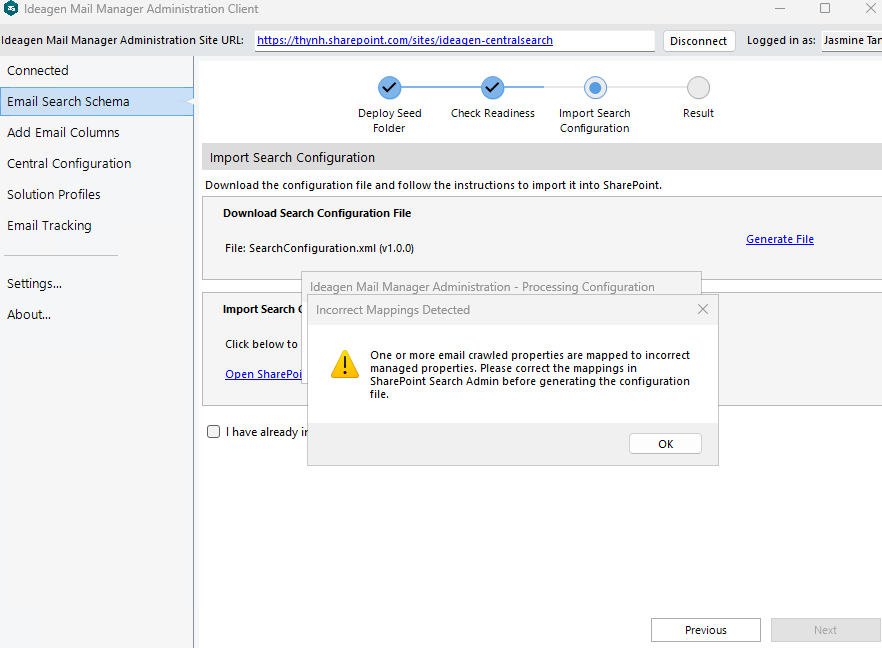
Removing mapping
To remove the mapping:
- Navigate to the Crawled Properties page.
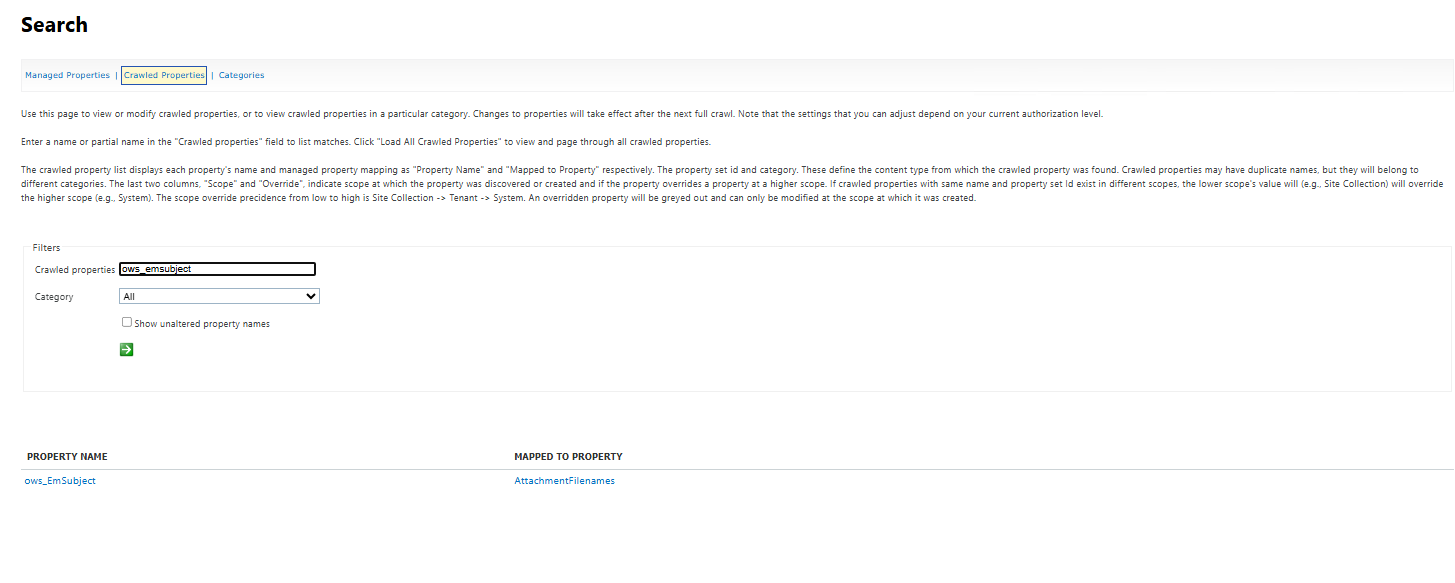
- Click Open Menu for the property.
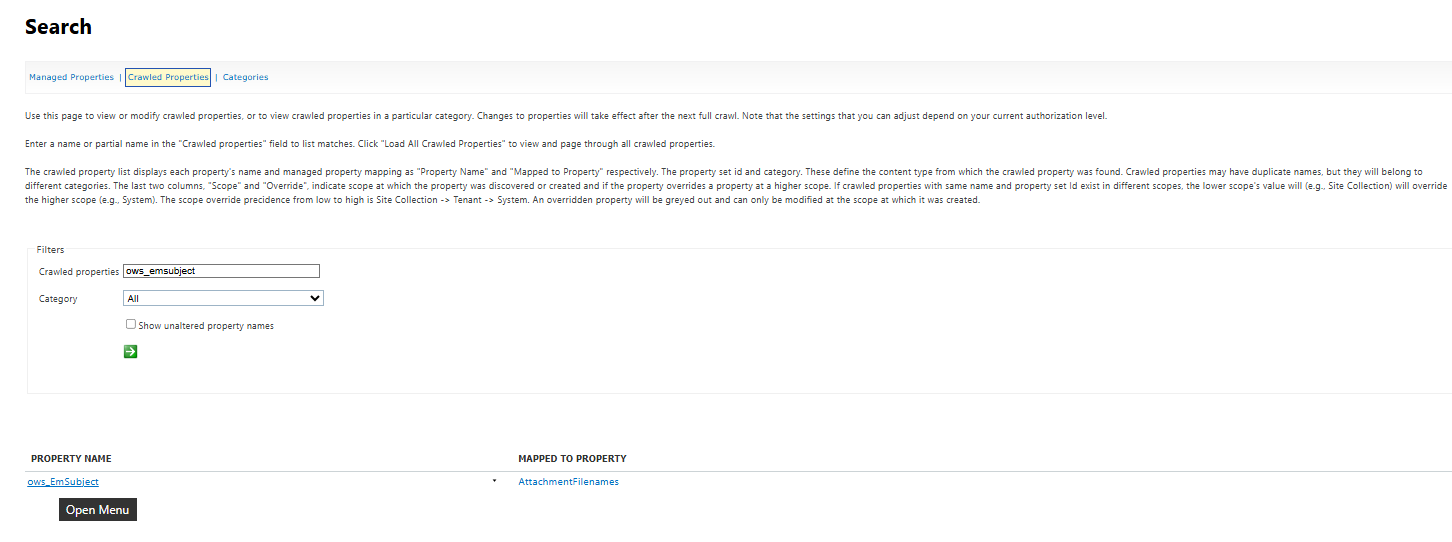
- Select Remove Mapping.
- Click OK.
Note: The RefinableDate property maps the crawled property (
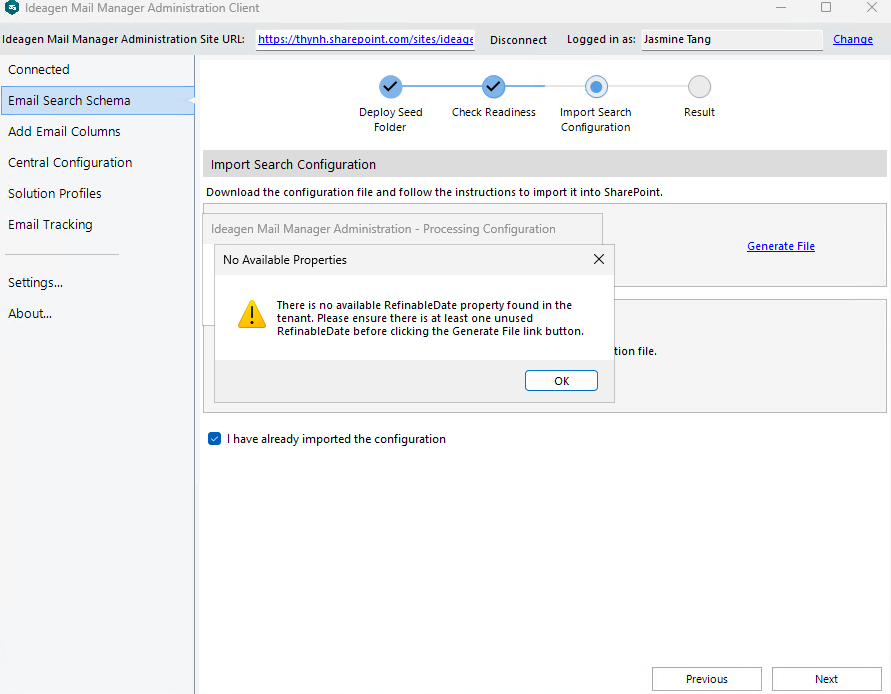
ows_EmDateSent) to a Date type for filtering. The exact name (for example, RefinableDate00, RefinableDate01) depends on which is available in your tenant. The tool selects an available RefinableDate automatically. If no refinable property is found during the system check, a prompt appears after clicking Generate File, reminding you to ensure at least one unused refinable property is available to map withows_EmDateSent.
Importing the file
Important: Importing search configuration requires tenant-level access. Ensure you have SharePoint Administrator or Global Administrator rights to perform this action.
To import the file:
- Click Open SharePoint Admin Center in the Import Search Configuration File section.
- Click Choose File.
- Select the SearchConfiguration.xml file you downloaded in the previous step.
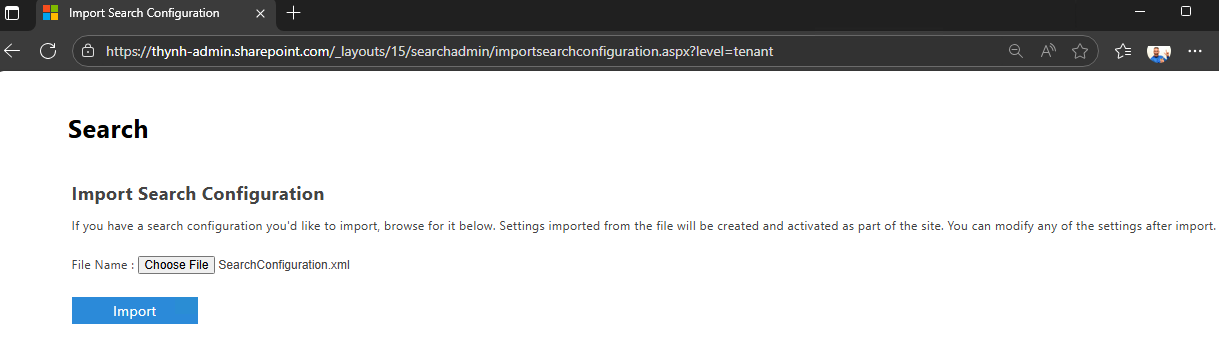
- Click Import to apply the configuration to your tenant.
- Wait for the import process to complete.
This usually takes only a few seconds.
- Monitor the import status by refreshing the page regularly.
When successful, the status will display Import Successfully.
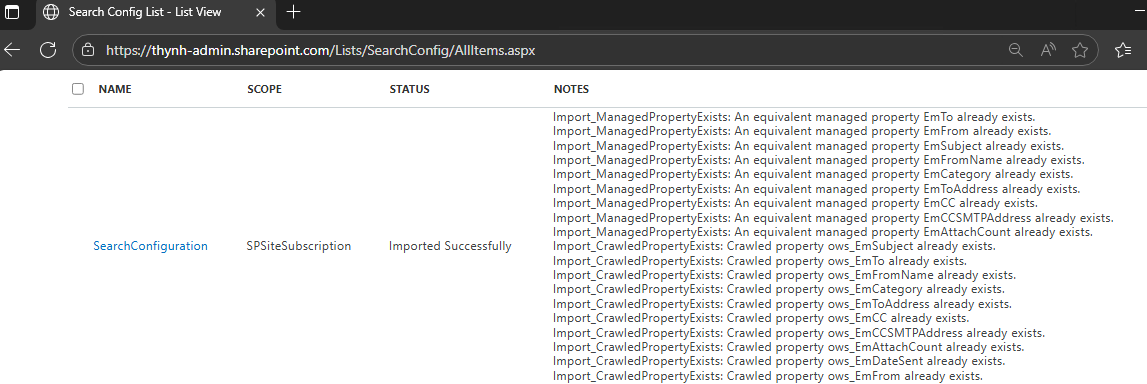
Note: If you receive an error, it may be a false alarm (due to something on Microsoft's side), and you can proceed to the next step to confirm you have already imported the configuration.
- Return to the Ideagen Mail Manager Administrator Client tool.
- Tick I have already imported the configuration.
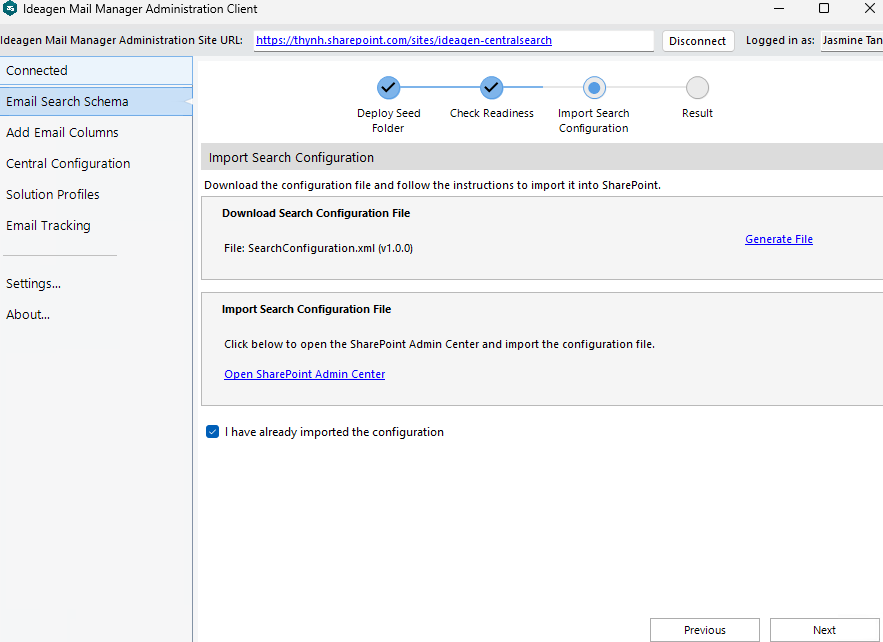
- Click Next.
Reviewing the result
This step validates that the managed properties mappings have been successfully applied and are active in your SharePoint search schema.
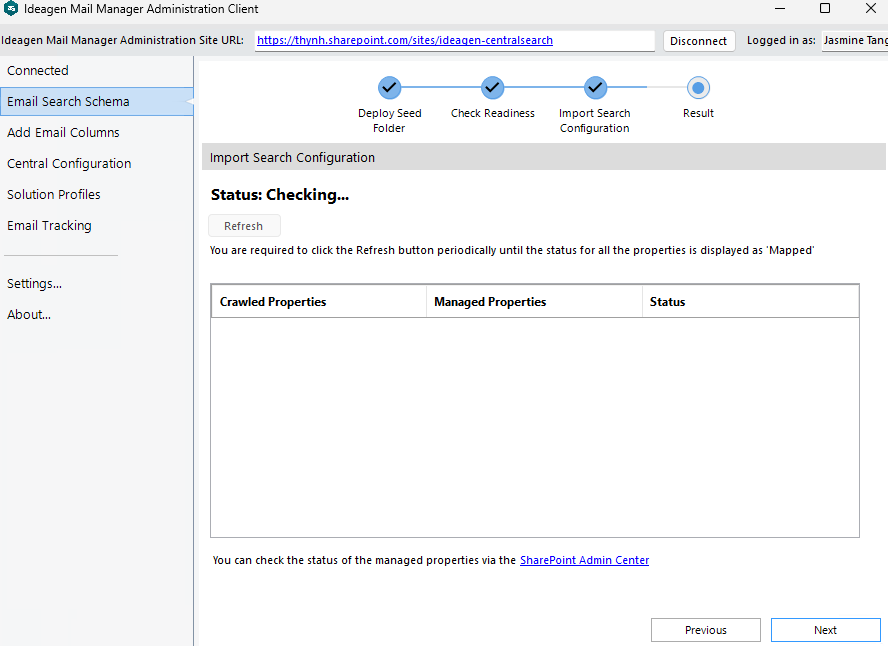
The status grid consists of three columns:
-
Crawled Properties - Refers to the source email column's crawled property (for example,
ows_EmSubject) -
Managed Properties - Refers to the target managed property for Search (for example,
EmSubjectorRefinableDateXX) - Status - Mapped or Not Mapped
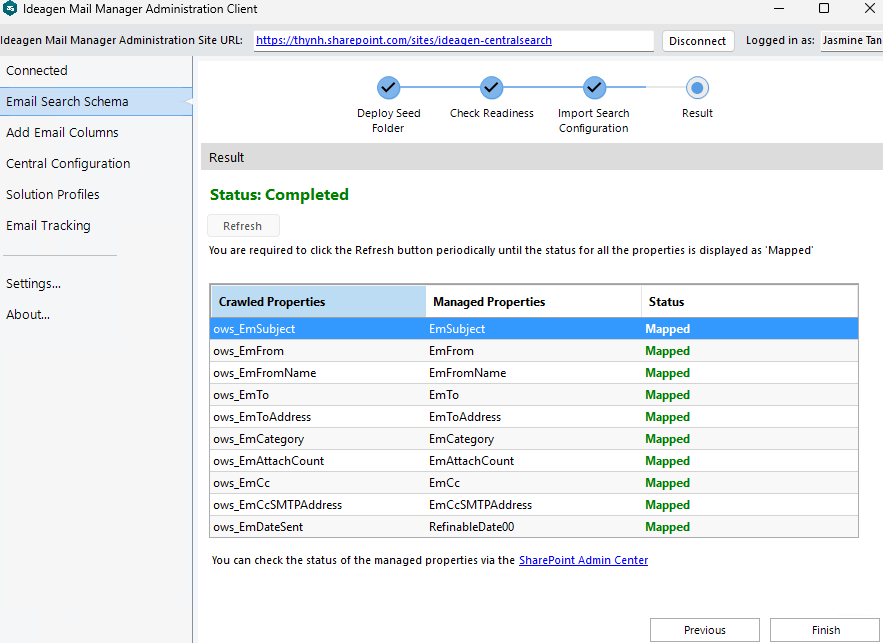
Review the status for each property in the table:
- Mapped (green) - The crawled property has been successfully mapped to the managed property
- Not Mapped (red) - The mapping has not been applied yet or is incomplete
Review the overall status indicator:
- Completed - All properties in the table are mapped
- Incomplete mapping - One or more properties are not mapped
- Checking … - After clicking the Refresh button, whilst it is being processed
When the overall status shows Status: Completed, the configuration process is completed.
You can verify the managed properties in SharePoint by opening the managed properties page through the SharePoint Admin Center link.
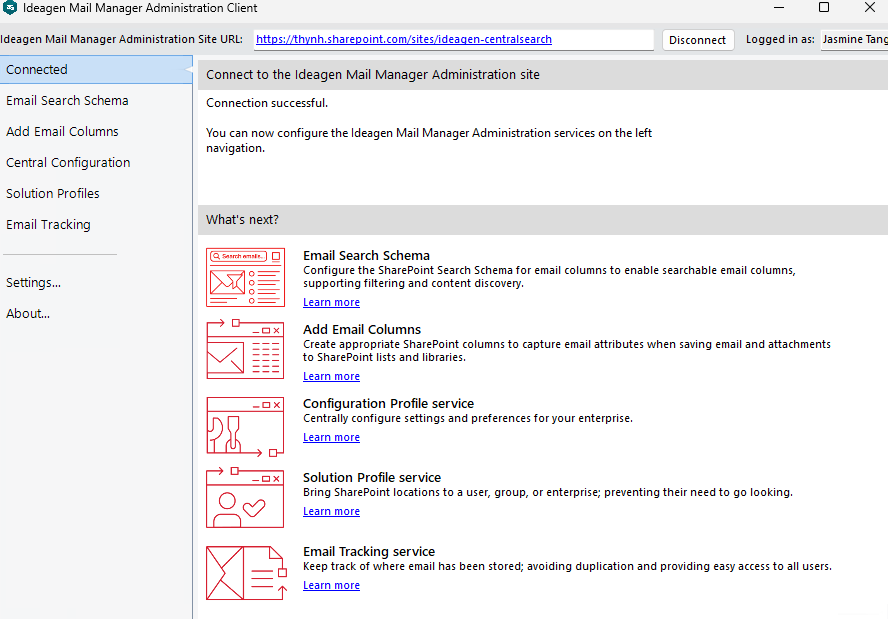
Once you are ready to complete the process, click Finish to be taken to the Connected section.
Tip: If properties remain in a Not Mapped status for an extended period, you can review the crawl log in the SharePoint Admin Center to identify any errors.
Understanding managed properties created
The Email Search Schema tool creates the following managed properties in your tenant:
| Managed property | Crawled property | Type |
|---|---|---|
| EmSubject | ows_EmSubject | Text |
| EmFrom | ows_EmFrom | Text |
| EmFromName | ows_EmFromName | Text |
| EmTo | ows_EmTo | Text |
| EmToAddress | ows_EmToAddress | Text |
| EmCategory | ows_EmCategory | Text |
| EmAttachCount | ows_EmAttachCount | Text |
| EmCc | ows_EmCc | Text |
| EmCcSMTPAddress | ows_EmCcSMTPAddress | Text |
| RefinableDateXX | ows_EmDateSent | Date |
Reindexing a site
Reindexing is not part of the email search schema setup. Administrators determine when to perform reindexing at the site or document library level based on business requirements and the information shared below.
When is a reindex needed?
A reindex is only required if you had already saved emails to SharePoint before completing the email search schema setup (that is, before the managed properties were configured). If emails were saved after the schema setup was completed, SharePoint's incremental indexing will have picked them up automatically — no manual reindex is needed.
What happens if a reindex is skipped?
If you have older emails saved in SharePoint that pre-date the schema setup and you skip the reindex, those records will not be fully searchable via the search app. For example, if you completed the schema setup in March 2025 but had been saving emails since January 2025, emails saved between January and March will still be discoverable — however, their email metadata column values such as Subject, From, and To will not be displayed in the search results, nor will those records be searchable against those fields. Only emails saved from March onwards will behave as expected. Running a reindex ensures those older records are re-crawled and their metadata column values are correctly populated in the index.
Note: Reindexing can take from 24 hours to several days, depending on item count, document size, metadata complexity, and system load.
To reindex a site, follow the official Microsoft instructions on reindexing.