


New article
Recently updated
Starting the User Profile Service & Resetting IIS

Who is this article for?OnePlace Administrators.
Central Administration access is required.
This guide initiates the exploration of starting the User Profile Service and the crucial step of resetting IIS. Offering step-by-step instructions, this introduction paves the way for a comprehensive walkthrough.
1. Starting the User Profile Service
Even if User Profile Service Application existed before, it’s necessary to make sure services are started.
- Central Administration – System Settings – Manage Services on server:
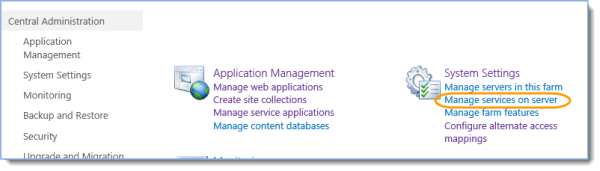
- Find the row whose Service column value is User Profile Service. If the value in the Status column is Stopped, click Start in the Action column:

- Find the row whose Service column value is User Profile Synchronisation Service. If the value in the Status column is Stopped:
- Click Start in the Action column

-
- In the Service Account Name and Password section, the farm account is already selected. Enter the password for the farm account in the Password box, and enter it again in the Confirm Password box.
- Manually refresh the page with the list of services until User Profile Synchronisation Service status is changed from “Starting” to “Started”. This may take 10 minutes.
2. Reset IIS
If the SharePoint Central Administration website and the User Profile synchronisation service are running on the same server, you must reset IIS after the User Profile synchronisation service starts. If they are running on different servers, you may skip this procedure.
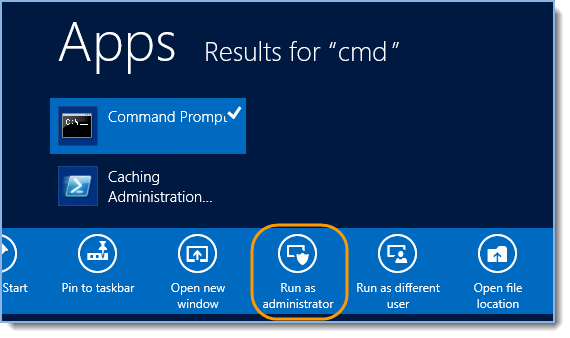
- Click Start, type “cmd” right-click on it and select Run as Administrator:
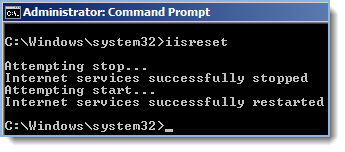
- Type "iisreset" and press Enter:
Tip: Ready to move onto the next stage of setting up the environment for SharePoint Site Mailboxes? See Creating & Starting Synchronisation Connection for more information.