


New article
Recently updated
Getting started with the Ideagen Mail Manager: Enterprise web app

Who is this article for?
Users who want to learn to get started with the Ideagen Mail Manager: Enterprise web app.
No elevated permissions are required.
This guide provides a quick overview of how to use the Ideagen Mail Manager: Enterprise app to save content to SharePoint and Microsoft Teams.
1. Using the web app - saving an email.
The video below walks you through the steps to save an email.
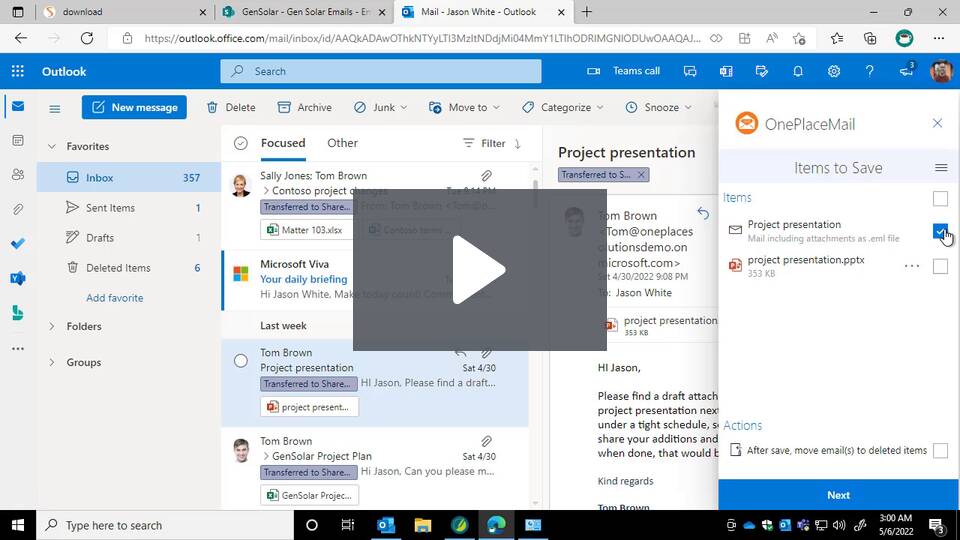
Save emails to Microsoft 365 with OnePlaceMail App
2. Getting started
The Ideagen Mail Manager: Enterprise app for Outlook is available on any device where you can use Microsoft Outlook. For example - New Outlook, Outlook Web Access and even classic outlook.
- Save emails and attachments to any SharePoint location (Office 365), or Microsoft Teams channels.
- Ideagen Mail Manager: Enterprise will automatically capture email properties and promote these to columns to provide enhanced search and access for users.
- Also, capture custom columns during the saving process, enhancing productivity and collaboration.
3. How to Access the Ideagen Mail Manager Enterprise Web app
-
Access ideagen Mail Manager: Enterprise web app in New Outlook.
When your IT team have deployed it to you, you can access this web app by clicking the apps icon in New Outlook as shown below:This will show you your app as below:
You can also click on any email > click on the 3 dots > then customize actions > then check Ideagen Mail Manager Enterprise app, to have it show on your email tool bar as below.
- Access Ideagen Mail Manager: Enterprise via the Outlook app for iOS
- Access Ideagen Mail Manager: Enterprise via the Outlook app for Android