


New article
Recently updated
Creating & Starting App Management Service Application

Who is this article for?OnePlace Administrators.
Central Administration access is required.
The Site Mailboxes feature requires that the App Management Service application be configured in the farm. See below for some step-by-step instructions.
1. Create App Management Service Application
For full details please refer to the following article: New-SPAppManagementServiceApplication.
- On Central Administration, in the Application Management section, click Manage service applications:
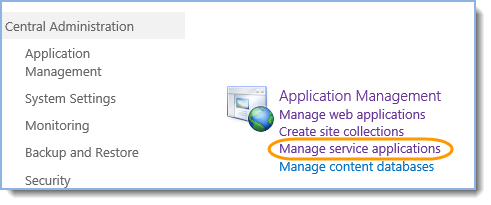
- If there is “App Management Service” then skip to step 2 Start App Management Service Application otherwise continue performing the following steps:
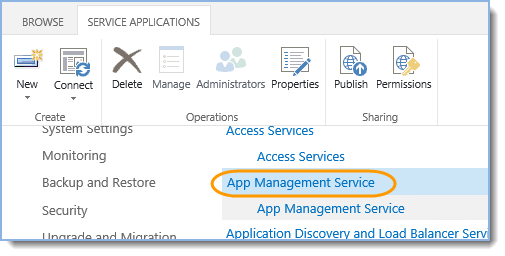
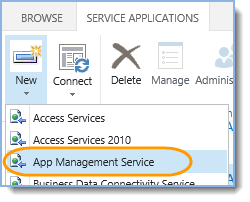
- Click New – App Management Service:
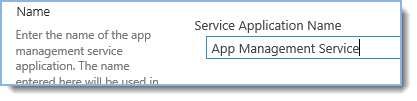
- Provide a name:
- Select default application pool:
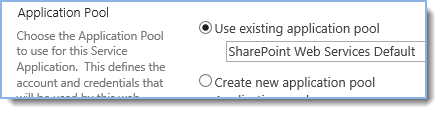
- Check the following and click “OK”:

2. Start App Management Service Application
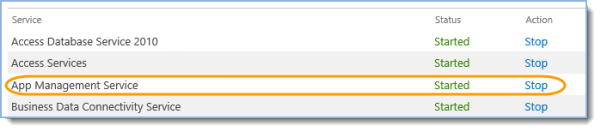
Verify App Management Service application is started.
- Central Administration – System Settings – Manage Services on server:
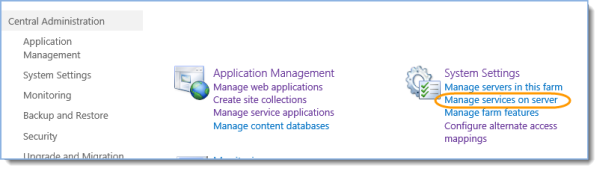
- Find the row whose Service column value is App Management Service. If the value in the Status column is Stopped, click Start in the Action column:
Tip: Ready to move onto the next stage of setting up the environment for SharePoint Site Mailboxes? See Creating a User Profile Service Application for more information.